

You’re working on your remote desktop, you highlight a chunk of text, hit Ctrl+C, switch to your local machine, hit Ctrl+V — and nothing happens.
You try again. Still nothing.
If this sounds familiar, don’t worry — this is a common RDP issue, and the fix is surprisingly simple.
In this guide, you’ll learn a quick and easy trick to restore copy-paste functionality on your RDP server in less than three minutes.
If you’d rather watch than read, we’ve also put together a short YouTube video that walks you through the entire process.
Why Copy/Paste Stops Working in RDP
The copy-paste feature in RDP depends on a background process called: rdpclip.exe (RDP Clipboard Monitor).
This process acts like a bridge between your local computer and your remote desktop session, allowing you to copy and paste text or files seamlessly.
But sometimes, this process can freeze, crash, or stop responding — and when that happens, your clipboard simply stops working.
Quick Fix: Restart the RDP Clipboard Monitor
Follow these four quick steps to get your clipboard back up and running in no time.
1. Open Task Manager
Right-click on the Windows taskbar inside your RDP session and select Task Manager.
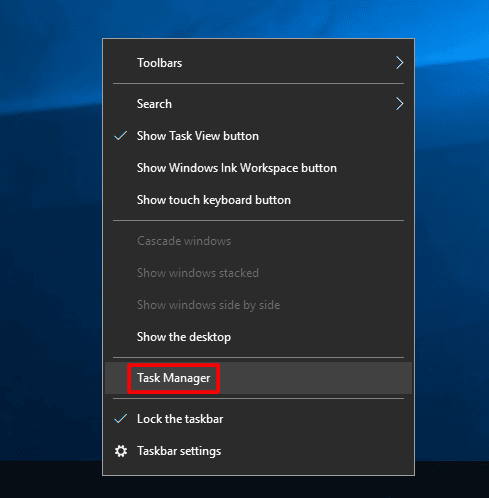
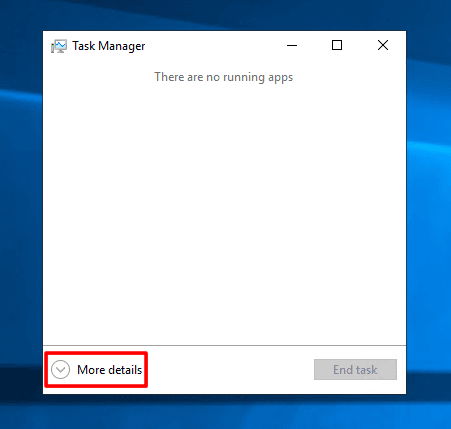
When it opens, click More Details at the bottom to expand the full view.
2. End the Clipboard Monitor Process
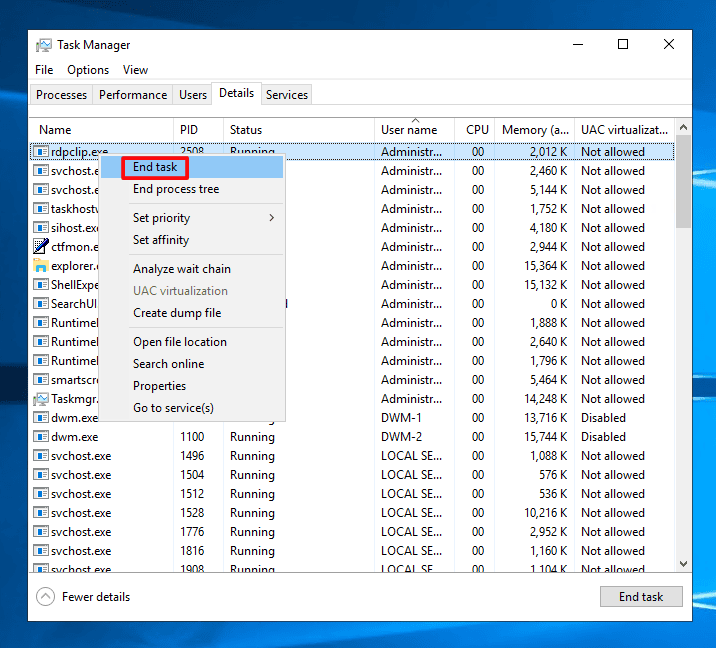
Now head over to the Details tab in Task Manager.
This gives you a full list of every running process.
Scroll through the list and look for rdpclip.exe.
This is the process responsible for copying and pasting between your local machine and the remote desktop.
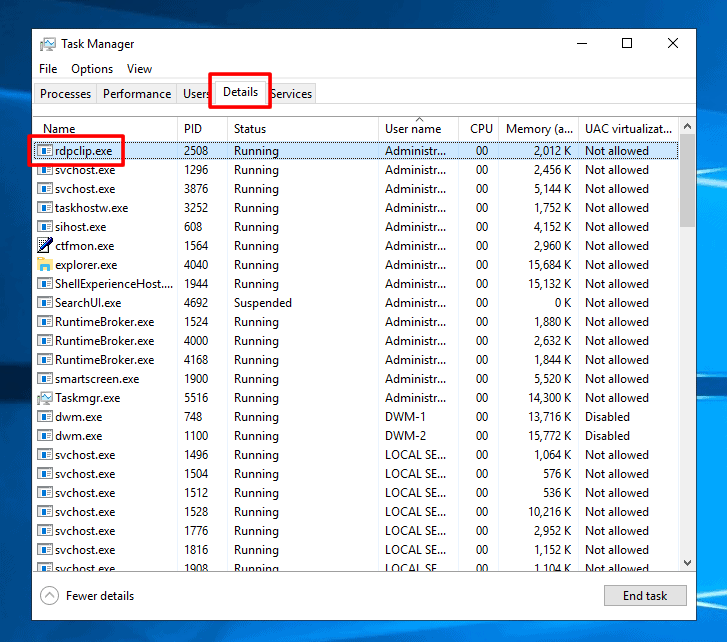
Right-click on rdpclip.exe and select End Task to stop it.
3. Restart the Process
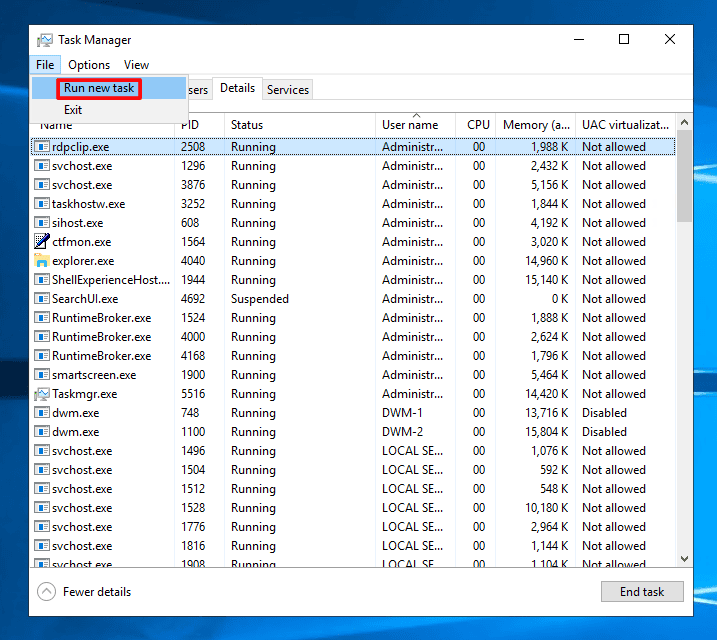
Now go to File in the Task Manager menu bar and click Run New Task.
In the dialog box that appears, type: rdpclip.exe and hit OK.
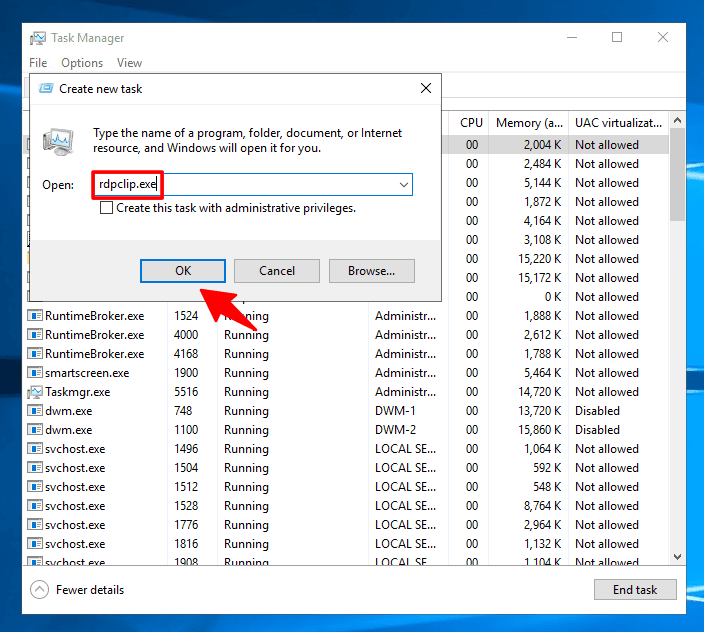
That’s it! The RDP Clipboard Monitor will restart, and your copy/paste should be working again immediately.
Still Not Working?
If the clipboard is still acting up after restarting the process, try this:
– Shut down your RDP session completely (not just disconnect — fully shut down).
– Log back in after a few seconds.
– This forces a fresh session and resets all background processes, including the clipboard monitor.
In most cases, this clears up any lingering issues.
A Special Offer Just For You
Since you’ve made it this far, here’s a small bonus for you.
We are offering a flat 20% discount on all our RDP plans.
Simply head over to rdparena.com and use the code “20OFF” during checkout to claim your discount.
Hurry! Stocks are limited, and this offer may expire at any time.
