

Clipboard redirection is one of the most overlooked security holes in Remote Desktop setups, and most admins don’t even realize it’s wide open by default.
The good news? You can shut it down in under two minutes without installing anything or touching a single line of code.
This guide walks you through the exact steps to disable copy and paste on your RDP server using a built-in Windows Group Policy setting.
If you prefer watching over reading, we’ve also created a short YouTube video that walks you through the entire process step by step.
Why Should You Disable Copy/Paste on Your RDP Server?
When users connect to your RDP server, Windows lets them freely copy and paste between the remote session and their local machine.
That means text, files, and sensitive data can be transferred out with zero friction.
For businesses handling client data, financial records, or proprietary information, this is a serious risk.
Disabling clipboard redirection helps you prevent data leaks, protect sensitive company files, strengthen your RDP security, and maintain better control over how users handle data on your server.
Step-by-Step: Disable Clipboard Redirection via Group Policy
Here’s how you can lock it down.
Do note that you’ll need admin access to your RDP server.
1. Open the Group Policy Editor
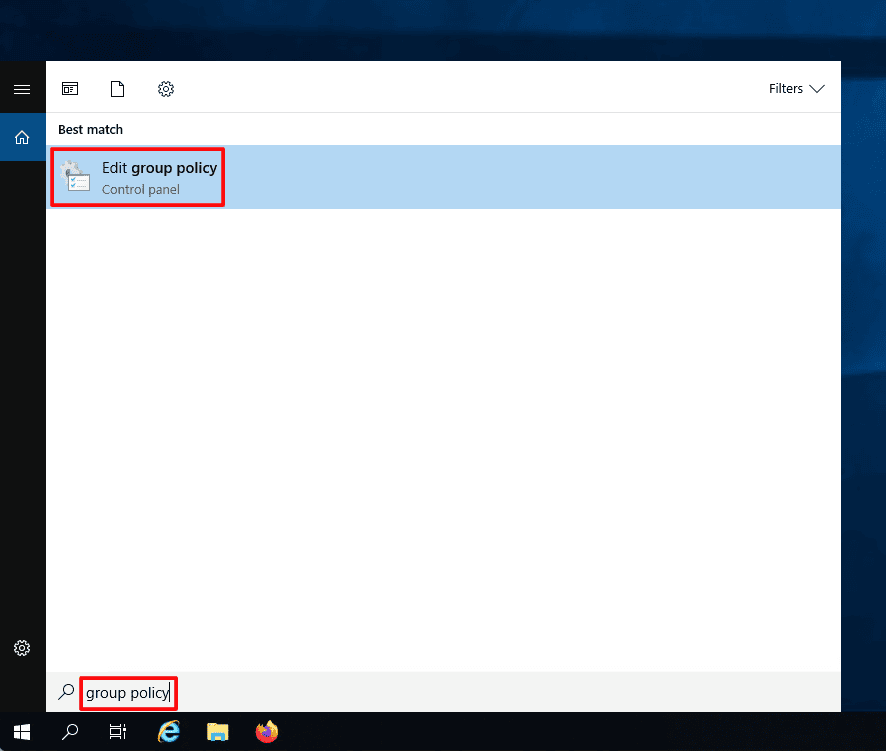
Log in to your RDP server, click the Windows search bar, and type “group policy.”
From the results, click Edit Group Policy to launch the editor.
2. Navigate to the Right Folder
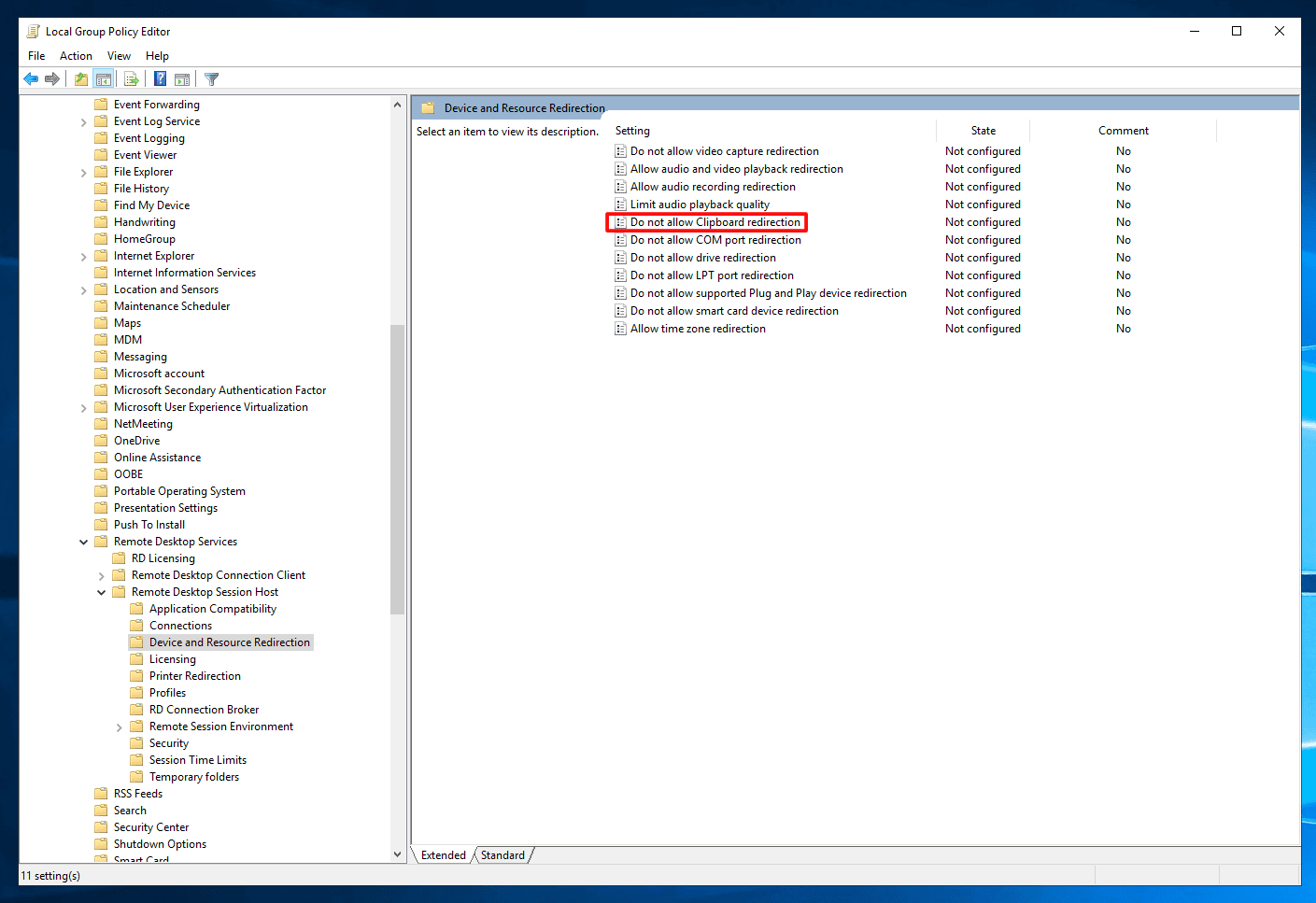
In the Group Policy window, follow this path on the left-hand side:
Computer Configuration → Administrative Templates → Windows Components → Remote Desktop Services → Remote Desktop Session Host → Device and Resource Redirection
Note: Just double-click each folder to drill down to the next level. If you run into any difficulties, please refer to the video mentioned in the introduction, starting at 00:55.
3. Enable the Clipboard Restriction
On the right side of the window, find the policy called “Do not allow Clipboard redirection.” Double-click it.
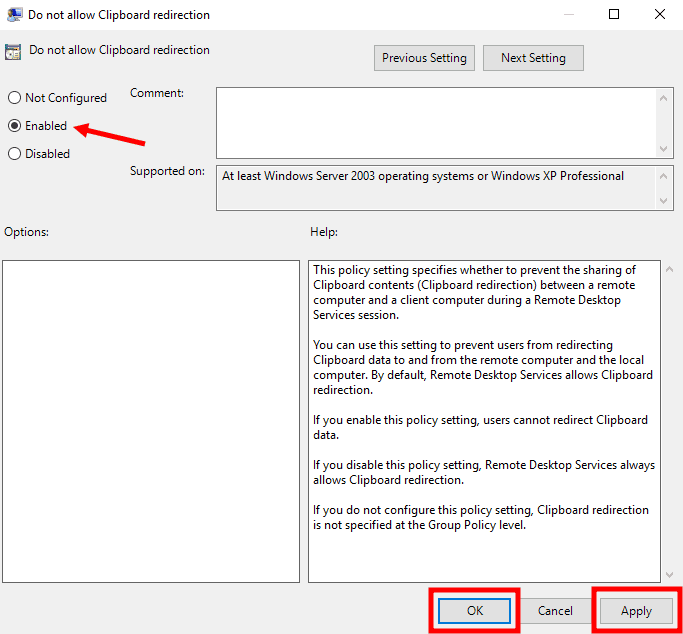
A settings window will appear with three options: Not Configured, Enabled and Disabled.
Select Enabled, then click Apply followed by OK.
4. Restart Your Server (Don’t Skip This!)
This is the step people forget.
The policy change won’t take effect until you restart your RDP server. Go ahead and reboot it.
Once it comes back online, clipboard copy and paste will be fully blocked for all remote sessions.
A Special Offer Just For You
Since you’ve made it this far, here’s a small bonus for you.
We are offering a flat 20% discount on all our RDP plans.
Simply head over to rdparena.com and use the code “20OFF” during checkout to claim your discount.
Hurry! Stocks are limited, and this offer may expire at any time.
