

Every time you use Remote Desktop on a shared or public computer, Windows quietly saves your connection history, login details, and even fragments of your remote screen to the local hard drive.
Most people have no idea this is happening.
The fix? A single command-line flag that takes ten seconds to use.
Let me show you how it works.
If you’d rather watch than read, you can see the entire process step by step in the following YouTube video:
Before You Start
One quick heads-up: you’ll need administrator access on the local computer for this to work.
If you can’t right-click an app and run it as admin, unfortunately, this method isn’t an option.
Assuming you’ve got that covered, let’s dive in.
Launching Remote Desktop in Public (Incognito) Mode
To open the Remote Desktop App in Public Mode (incognito), you’ll need to launch it through Command Prompt using a special command that changes how the app behaves.
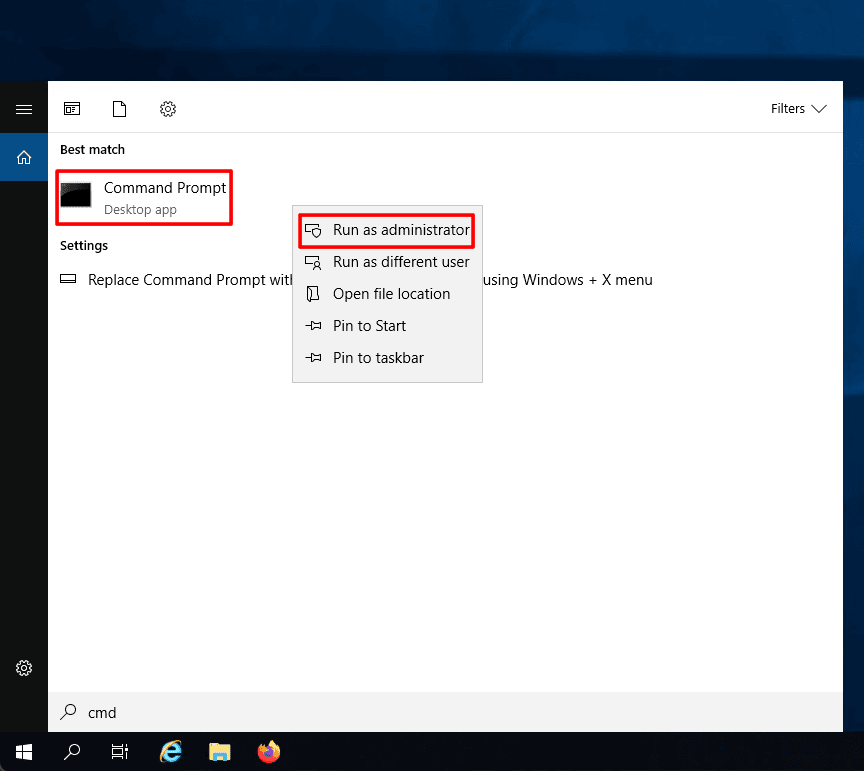
Hit the Windows Search bar and type cmd.
Right-click Command Prompt and choose Run as administrator.
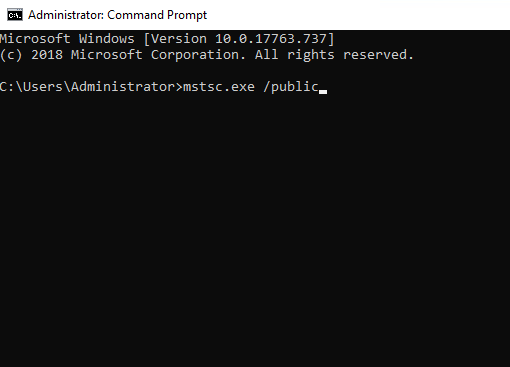
Type mstsc.exe /public and press Enter.
This opens the Remote Desktop Connection App and forces it into Public Mode, which stops it from saving any sensitive connection data to the local machine.
You’ll notice the difference right away.
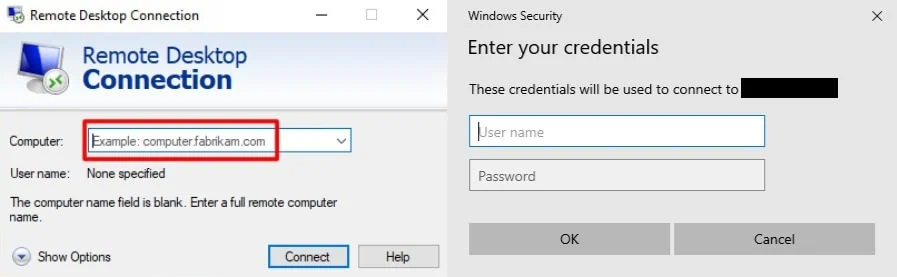
Any server logins you’ve saved in the past won’t appear, and the “Remember me” checkbox will be completely greyed out.
You couldn’t save your credentials here even if you tried.
From there, just enter your server’s IP address, type in your username and password, and connect as usual.
What Public Mode Actually Protects
Hiding your connection history is just the start.
Public Mode quietly handles a few other privacy concerns in the background.
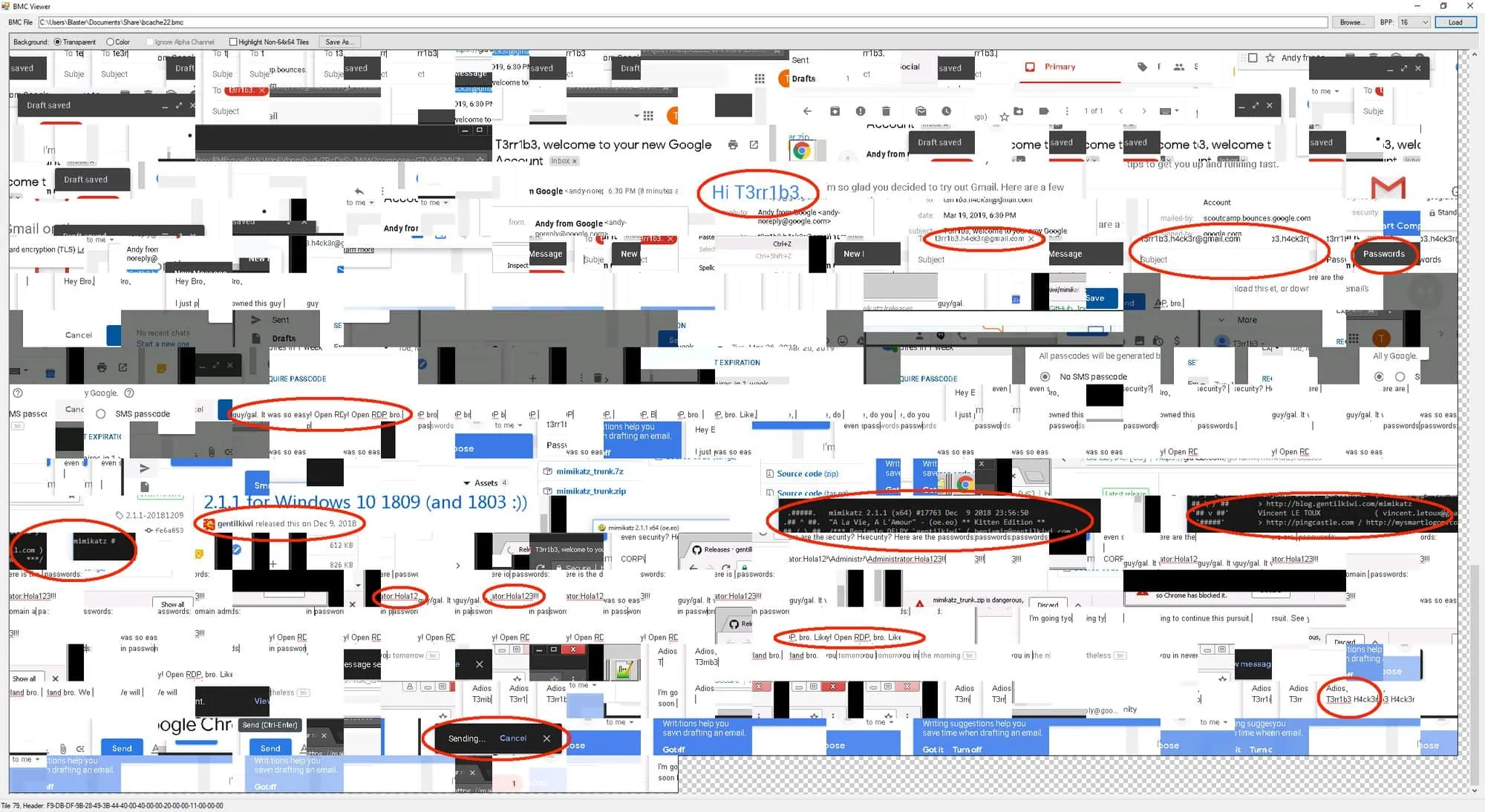
No bitmap caching: Normally, Remote Desktop saves small images of your remote screen to the local hard drive to improve performance.
These cached files can linger after you disconnect, potentially revealing what you were working on.
Public Mode skips this entirely.
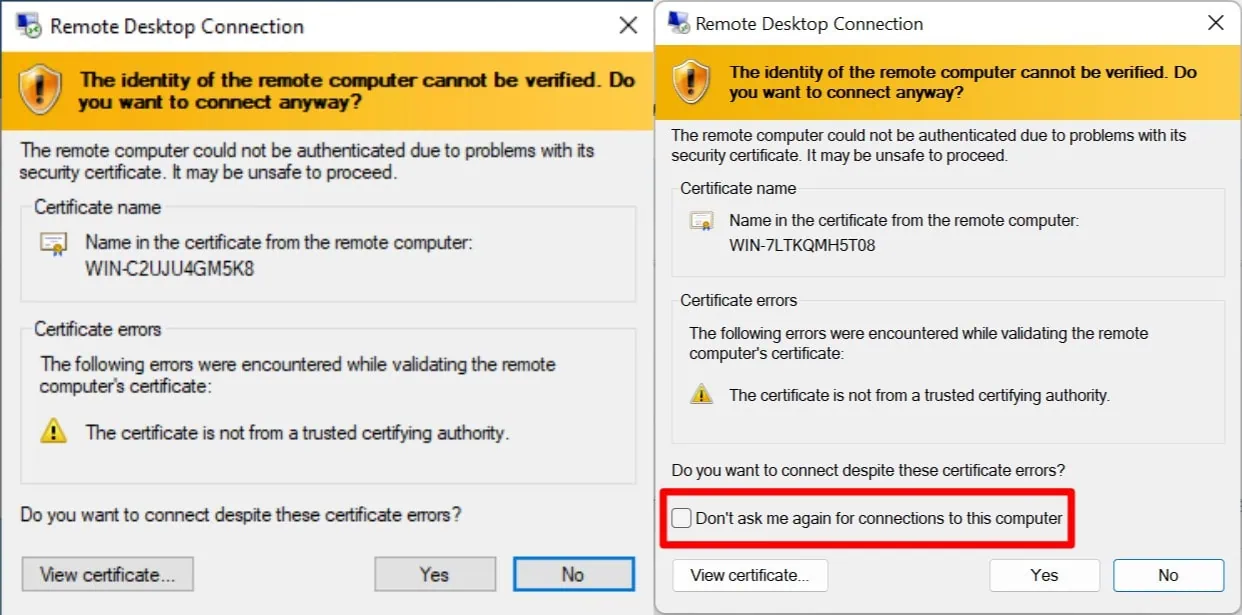
No stored certificate exceptions: You’ve likely seen the yellow warning that appears the first time you connect to a server, asking you to trust its security certificate.
Normally, once you accept it, Windows remembers that choice.
In Public Mode, it doesn’t. The certificate exception never gets stored, which means there’s one less trace linking you to that server.
One Thing This Method Cannot Hide
Public Mode helps protect your privacy on the local computer. But it does not make you invisible everywhere.
The hosting provider or data center running the RDP server can still log your IP address.
That’s just how remote connections work, and no client-side setting is going to change it.
So if server-side privacy is a concern for you, that’s a separate problem to solve.
When You Should Use This Trick
This method is especially useful anytime you need to access your server from a device that is not fully yours.
Use it when you want to avoid leaving behind:
– RDP connection history
– Saved usernames
– Stored credentials
– Cached screen data
– Certificate exceptions
If privacy on the local machine matters, this is one of the easiest built-in Windows tricks you can use.
Serious About Privacy? Get Your Own RDP Server
If privacy actually matters to you, relying on shared machines isn’t worth the risk. The smarter move is having your own dedicated Windows RDP that you control completely.
With a VPS-based Windows RDP Server from RDP Arena, that’s exactly what you get.
A private machine that’s yours alone, with no shared resources, no other users, and no leftover data on someone else’s system.
Just a clean, fast, fully isolated environment every time you connect.
Whether you need it for remote work, development, or daily browsing, you’ll be up and running in a few minutes.
Ready to get started? Head over to our website and set up your own Windows VPS with RDP access in minutes.
Use code “20OFF” at checkout to get a FLAT 20% DISCOUNT on your first purchase.
Availability is limited, and these servers tend to go quickly, so if you’re considering it, now’s a good time to grab one.
