

If you’re reading this, you probably just pressed Ctrl + Alt + Delete and watched your local lock screen pop up instead of Task Manager on the remote server you were trying to fix.
Annoying, right? But it’s not a glitch—that’s just how RDP handles the shortcut.
Here are three simple ways to open Task Manager inside your RDP session and actually get the problem sorted.
Method 1: Right-Click the Taskbar
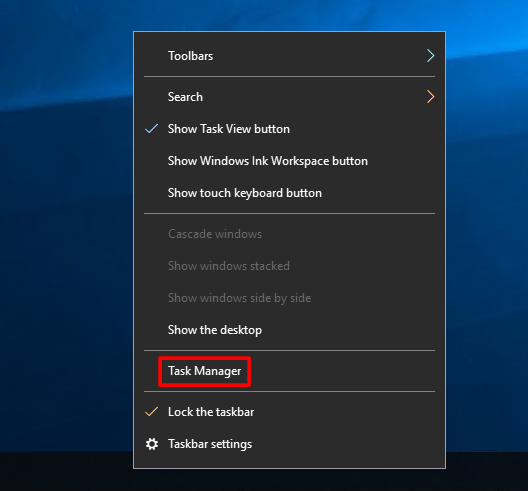
Inside your remote desktop session, move your cursor to the bottom of the screen and right-click an empty area of the taskbar.
From the menu that appears, select Task Manager.
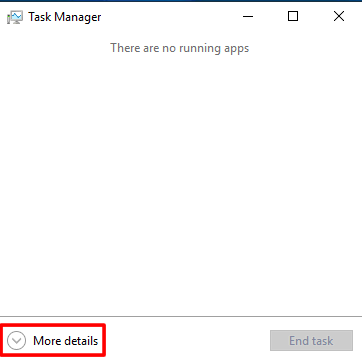
Tip: If it opens in a compact view showing only running apps, click on More details to access the full Task Manager interface.
Method 2: Use the Run Command
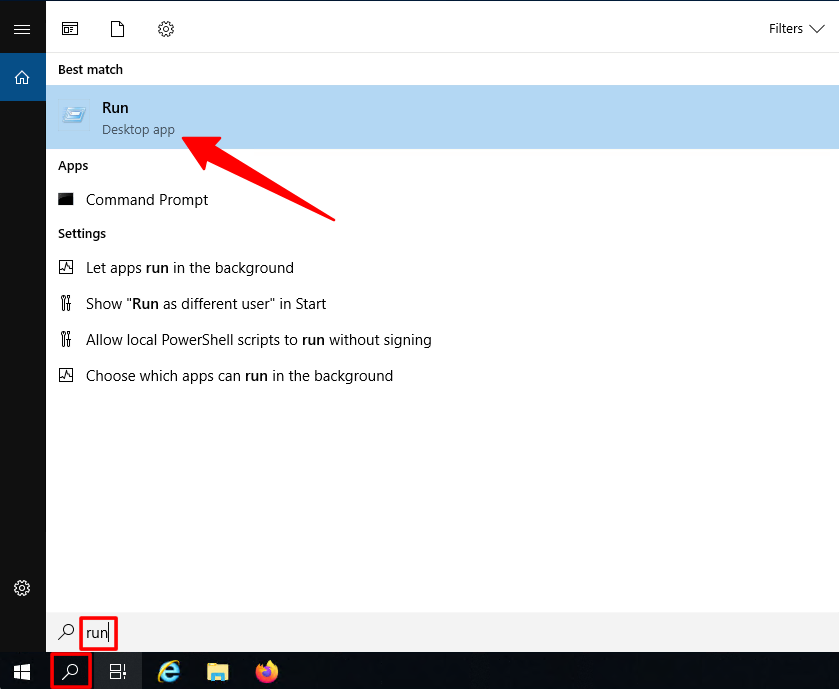
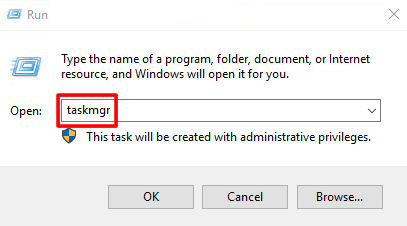
Inside the remote session, open the Run app by typing run into the Windows search bar and selecting it from the results.
In the Run App dialogue box type in taskmgr and press Enter. Task Manager will launch immediately.
Method 3: Use the RDP Keyboard Shortcut
Ctrl + Alt + Delete is reserved for your local computer, but RDP has its own equivalent.
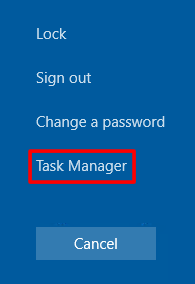
In the remote desktop window, press Ctrl + Alt + End.
This brings up the Windows Security screen inside the remote session.
From there, click Task Manager to open it.
A Special Offer Just For You
Since you’ve made it this far, here’s a small bonus for you.
We are offering a flat 20% discount on all our RDP plans.
Simply head over to rdparena.com and use the code “20OFF” during checkout to claim your discount.
Hurry! Stocks are limited, and this offer may expire at any time.
