


You’re in the middle of work, need to jump into a server for a quick check, and your hands do the routine without thinking.
Open Remote Desktop. Paste the IP. Type the username. Enter the password. Click past the security warning.
You’ve done it so many times it’s muscle memory.
None of it is hard — it’s just unnecessary repetition.
And when you’re connecting to the same server multiple times a day, that repetition quietly drains time and focus.
There’s a simpler way.
You can turn that entire sequence into a single double-click: a desktop shortcut that opens your server instantly, with no typing and no extra prompts.
It takes about two minutes to set up. Here’s how.
If you prefer watching instead of reading, we have also explained the full process in a short YouTube video you can check out.
Step-1: Open The Remote Desktop Connection App
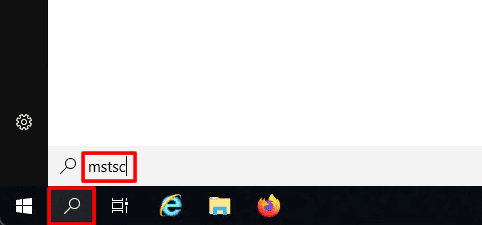
Click the Windows search bar and type in “mstsc.”
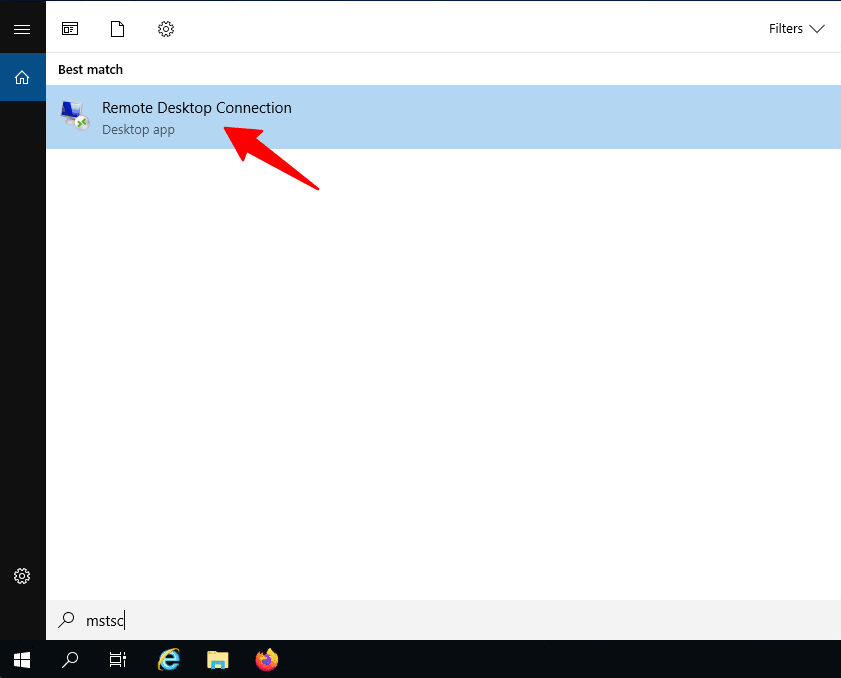
Select the Remote Desktop Connection App from the search results.
Step-2: Enter Your Server Details
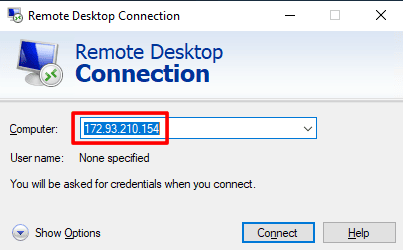
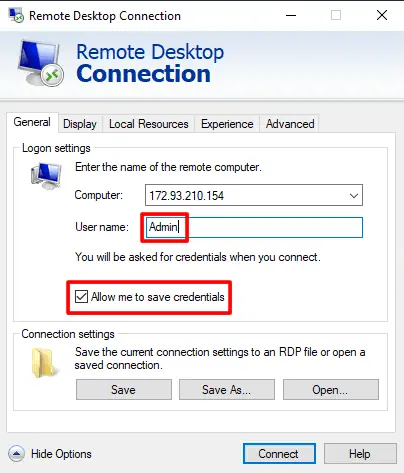
In the Remote Desktop Connection window, enter your server’s IP address or hostname in the Computer field.
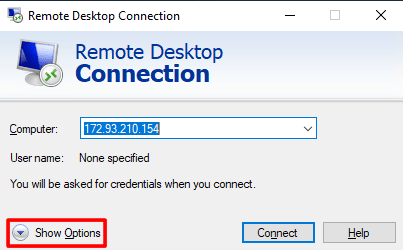
Click Show Options in the bottom-left corner to reveal additional settings.
Once the options are visible, enter the username you normally use to log in.
Make sure “Allow me to save credentials” is checked, as this allows the shortcut to remember your login details so you do not have to enter them every time.
Step-3: Save It As A Shortcut File
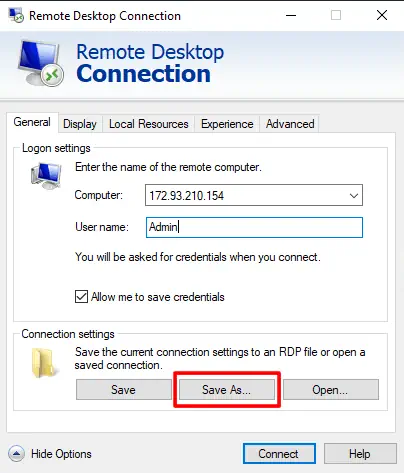
Under the Connection Settings section, click Save As.
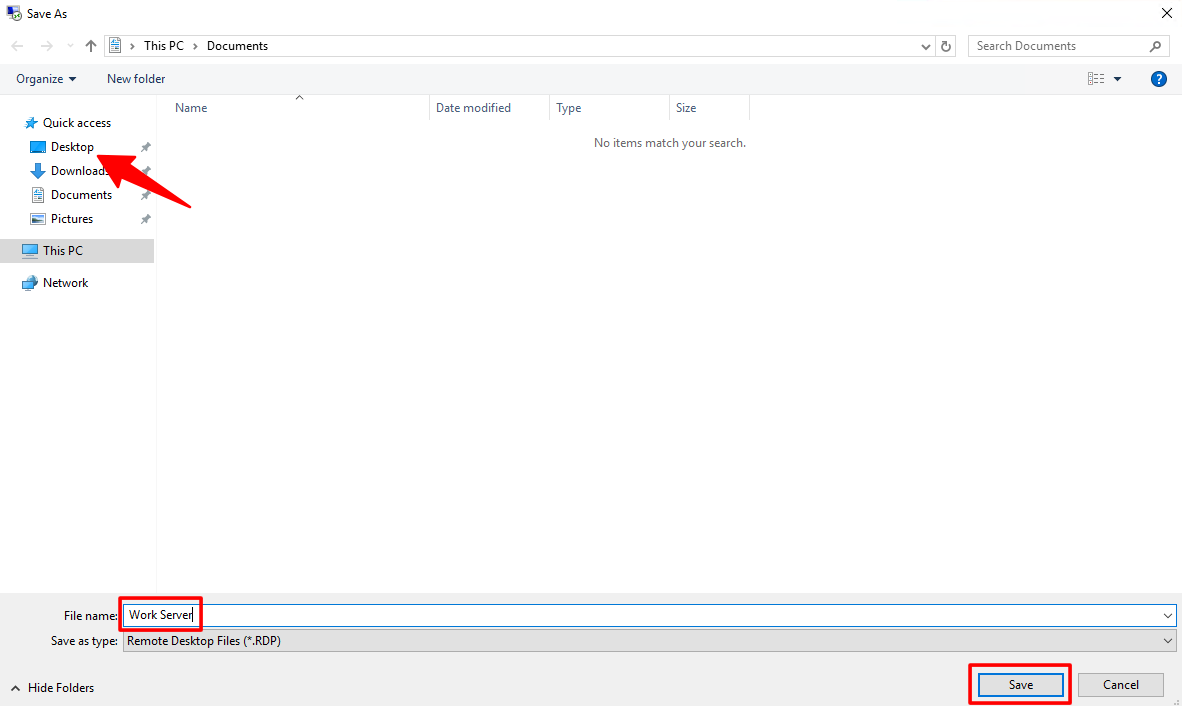
Choose a location that is easy to access, such as your desktop.
Give the file a clear, recognizable name like Work Server, then click Save.
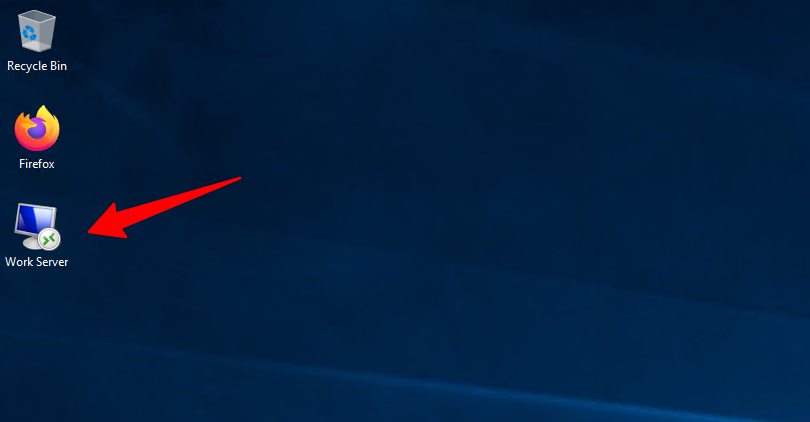
You can close the Remote Desktop window now. Your shortcut file is ready.
Step-4: Run It Once to Save Your Password
Double-click the shortcut you just created to open the connection.
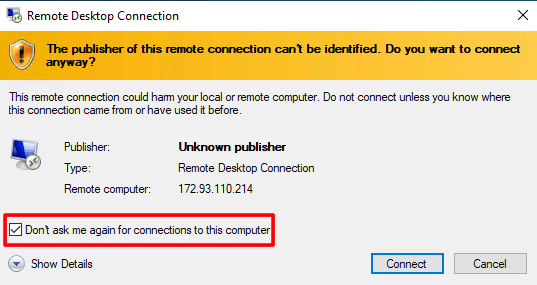
If a security warning pops up, select “Don’t ask me again for connections to this computer,” then click Connect.
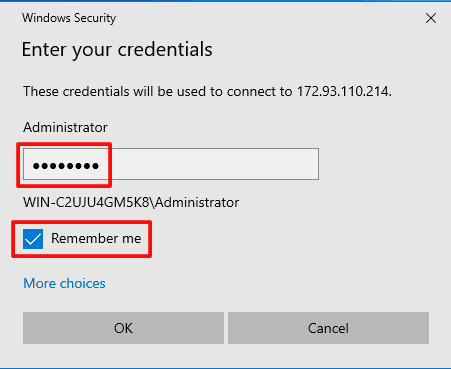
When prompted, enter your password and make sure the Remember me option is checked.
This allows Windows to store your credentials for future sessions.
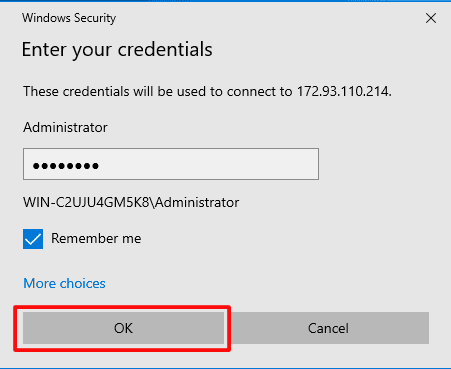
Once done, click on OK to connect.
That’s it. From now on, double-clicking that shortcut will take you straight into your server. No credentials, no prompts, no waiting.
Quick Tip: If you manage multiple servers, create a folder like RDP Shortcuts and store them all there (Desktop stays clean, and you can name them consistently).
A Special Offer Just For You
Since you’ve made it this far, here’s a small bonus for you.
We are offering a flat 20% discount on all our RDP plans.
Simply head over to rdparena.com and use the code “20OFF” during checkout to claim your discount.
Hurry! Stocks are limited, and this offer may expire at any time.
