

There’s nothing more frustrating than needing to access your Windows server and not knowing where to start on a Mac.
If that’s where you are right now, don’t worry. You’re only 5 minutes away from getting everything up and running.
If you prefer watching instead of reading, we have also explained the full process in a short YouTube video you can check out.
Download The Windows App From The App Store
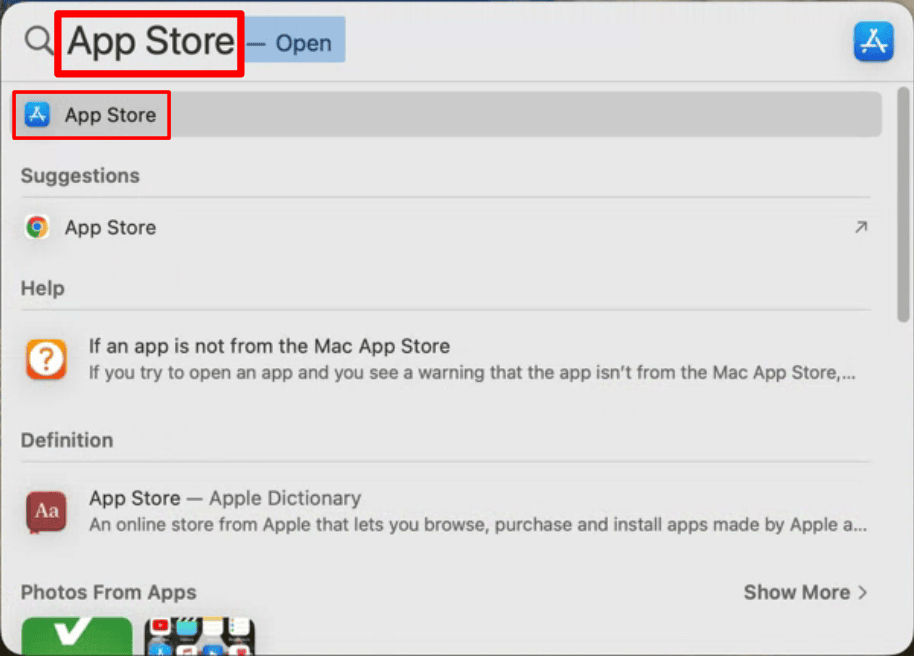
Open Spotlight Search (the magnifying glass icon at the top right of your screen) and type App Store, then hit Enter.
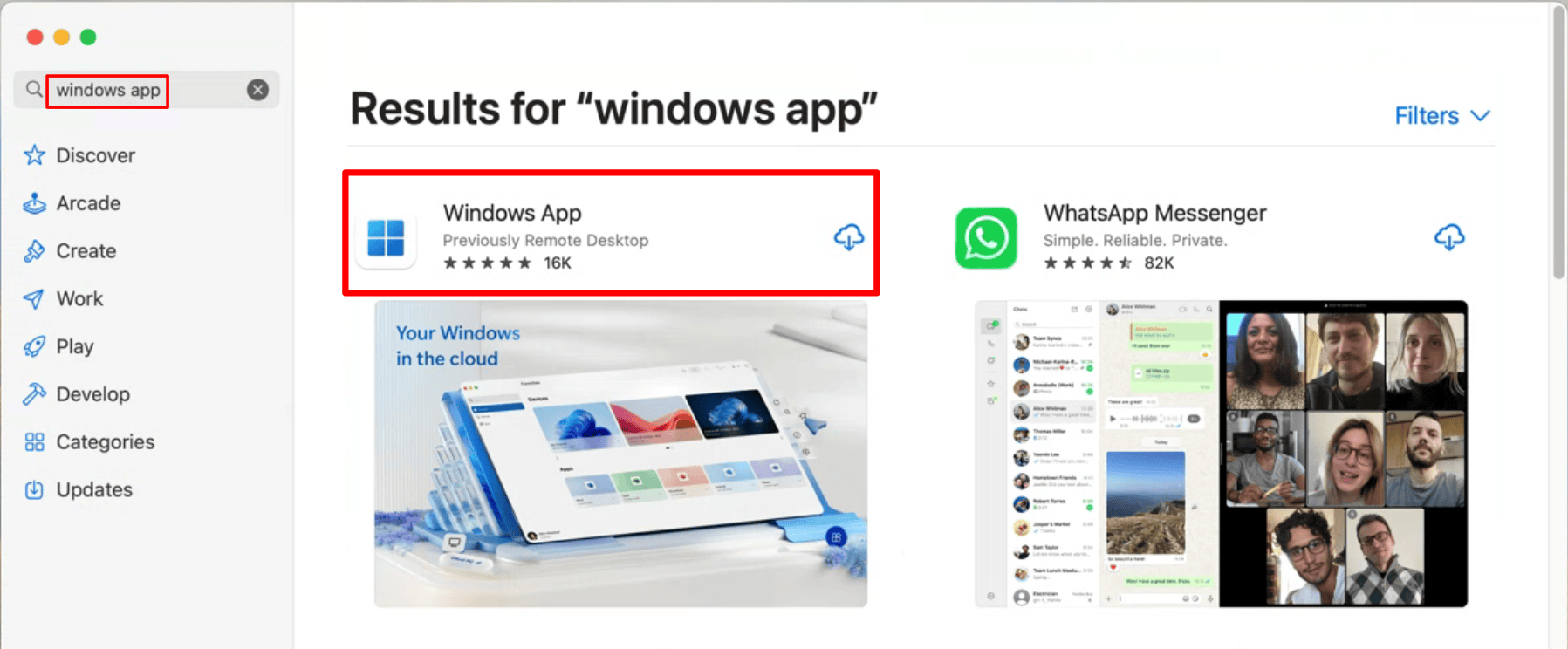
In the App Store’s search bar, type Windows App and install it.
Quick heads-up: the app was recently renamed. You might remember it as Microsoft Remote Desktop, but it is now called Windows App. It is the same app, just with a new name.
Add Your RDP Server
Once the app is installed and open, here’s how to add your server:
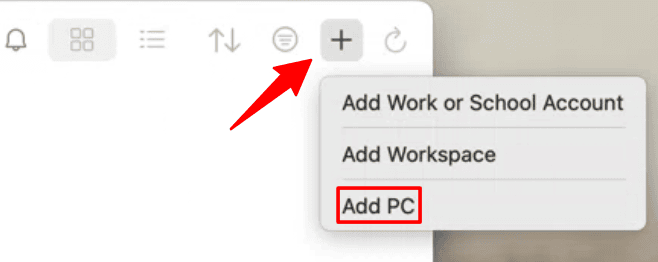
Click the “+” icon in the top right corner of the Windows App.
Select Add PC from the dropdown menu.
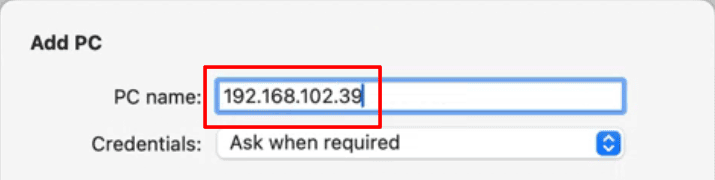
In the PC name field, enter your RDP Server IP address.
Not sure where to find your IP address?
Check the welcome email from your RDP provider.
It should clearly list your Server IP Address, username, and password all in one place.
Save Your Login Credentials
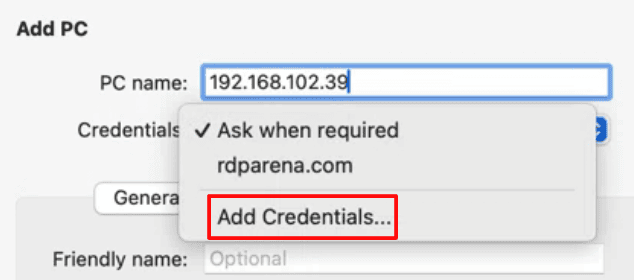
It’s a good idea to save your login credentials so you don’t have to enter them every time you connect. Here’s how to do it:
Click the Credentials dropdown and select Add Credentials.
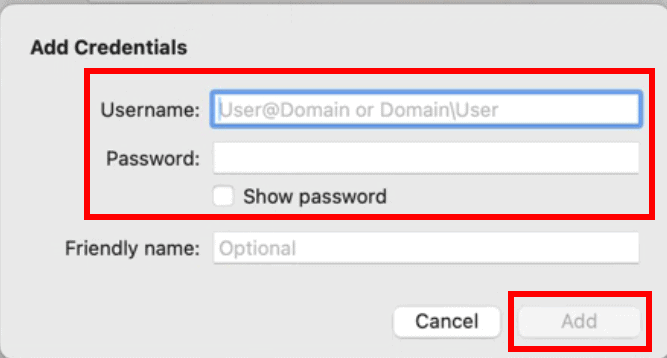
Enter the username and password from your welcome email.
Click Add to save them.
Name Your Server (Optional)
See the Friendly Name field?
Give your server a nickname that makes sense to you, like “Work Server” or “Main RDP.”
This is especially handy if you plan to manage more than one server down the road.
Once everything looks good, click Save.
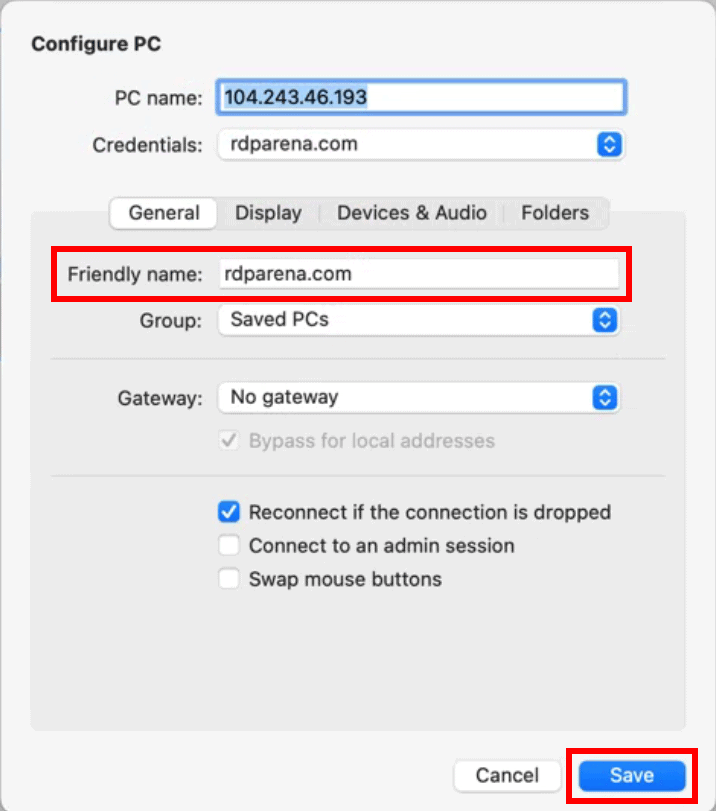
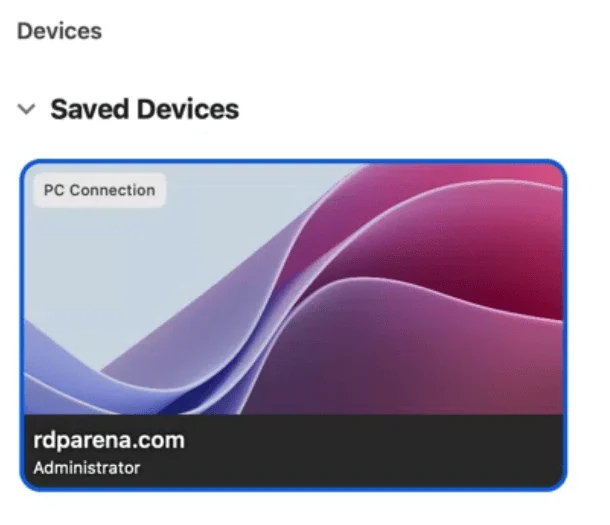
Your server will now appear under Saved Devices.
Connect and Get to Work
This is the part you’ve been waiting for.
Simply double-click your server in the Saved Devices list.
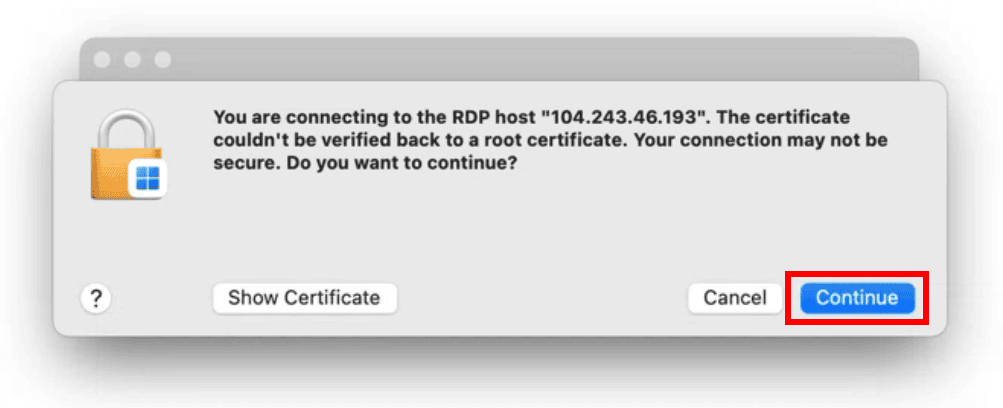
If a certificate warning pops up, don’t panic; it’s completely normal. Just click Continue.
That’s it! You should now be connected to your Windows remote desktop and can use it right from your Mac.
Disconnecting When You’re Done
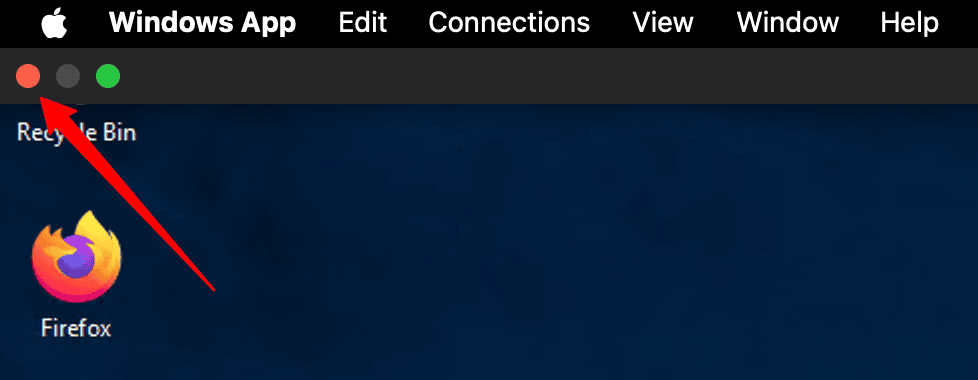
When you’re ready to wrap up, move your cursor to the top left of the screen and click the red X button.
That’s it! You should now be connected to your Windows remote desktop and can use it right from your Mac.
Ready to Get Your Own Windows RDP Server?
Looking for a fast, reliable Windows RDP server? RDP Arena makes it simple.
Our Instant RDP Servers run on a 10Gbps network, giving you the speed and stability you need right out of the box.
Your server is ready the moment you order, with connection details landing in your inbox instantly.
You also get full Admin access, so you can customize everything to suit your needs.
Instant RDP servers are currently available in Dallas, USA.
Need a different location?
Visit our location page to explore additional options, including servers in the UK, Canada, Germany, and the Netherlands.
