

You bought a Linux VPS, you’ve got the IP address and password sitting in your inbox, and now you’re staring at your screen wondering what exactly you’re supposed to do next.
Don’t worry, you’re three minutes away from being fully connected.
Keep reading, and we’ll walk you through each step.
If you’d rather watch than read, we’ve also put together a short YouTube video that walks you through the entire process.
Getting Started: What to Expect
Before you dive in, there’s one thing worth knowing so you’re not caught off guard.
A Linux VPS doesn’t look like a typical Windows computer with a desktop full of icons.
Instead, you’ll see a command line interface where you interact with your server by typing commands.
It might feel unfamiliar at first, but it becomes easier with practice.
What You’ll Need
Grab these three things from the welcome email your VPS provider sent you:
– Your Server IP address.
– Your username.
– Your password.
Step 1: Open the Terminal App
The Terminal app is already built into your Mac, so you don’t need to install anything.
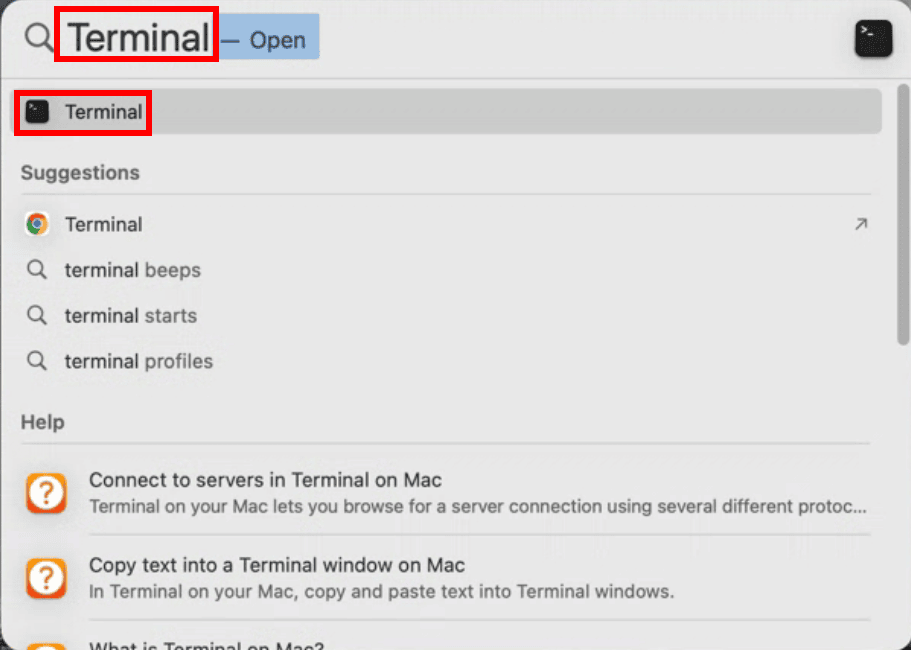
Press Command (⌘) + Space bar to open Spotlight Search, type Terminal, then press Enter or click on it when it appears in the results.
A window will open with a dark background and a blinking cursor.
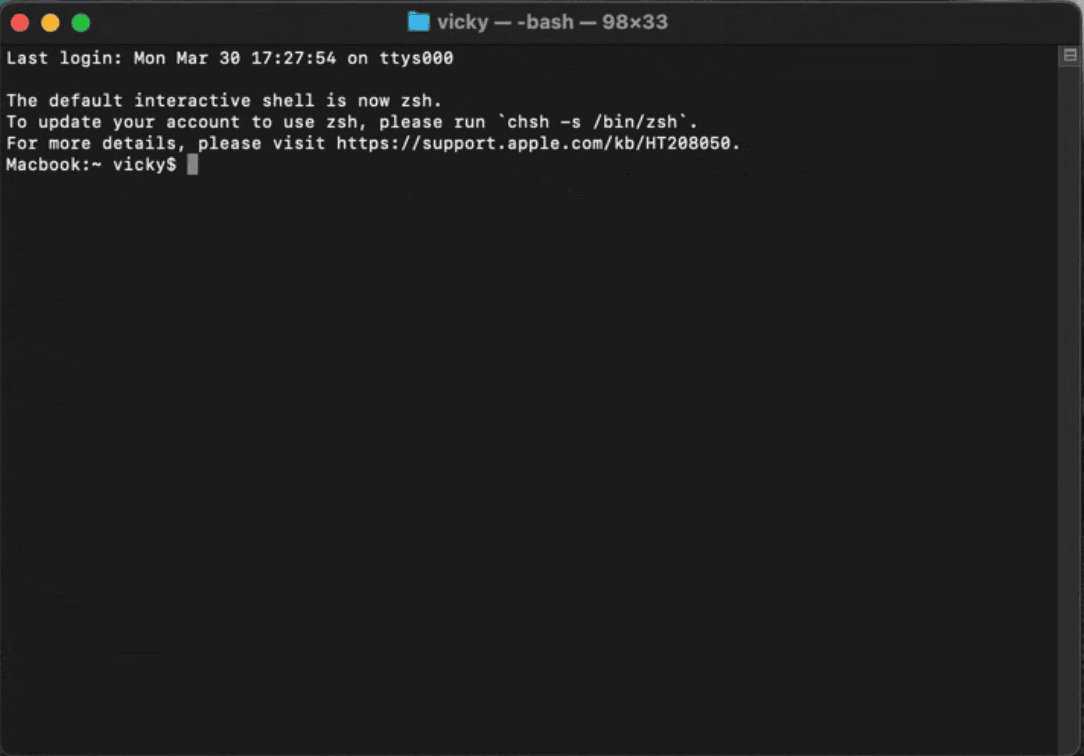
This is where you’ll enter the command to connect to your server.
Step 2: Type Your SSH Command
In the Terminal window, type the following command and replace the placeholder text with your actual details:
ssh username@your.server.ip
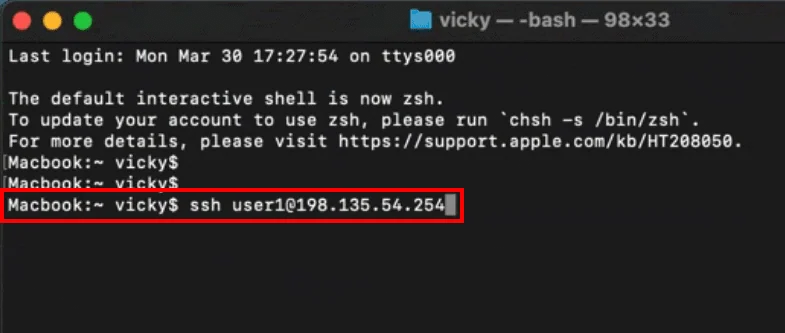
Once done, press Enter.
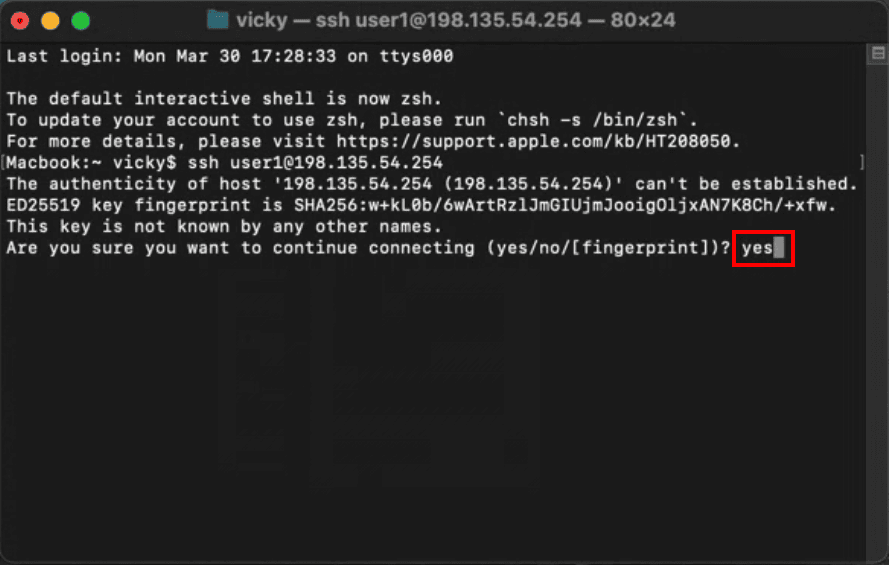
The first time you connect, you’ll see a security prompt asking if you want to continue connecting.
This is completely normal. Your Mac is simply warning you that it has not connected to this server before.
Simply type yes and press Enter to continue.
Step 3: Enter Your Password
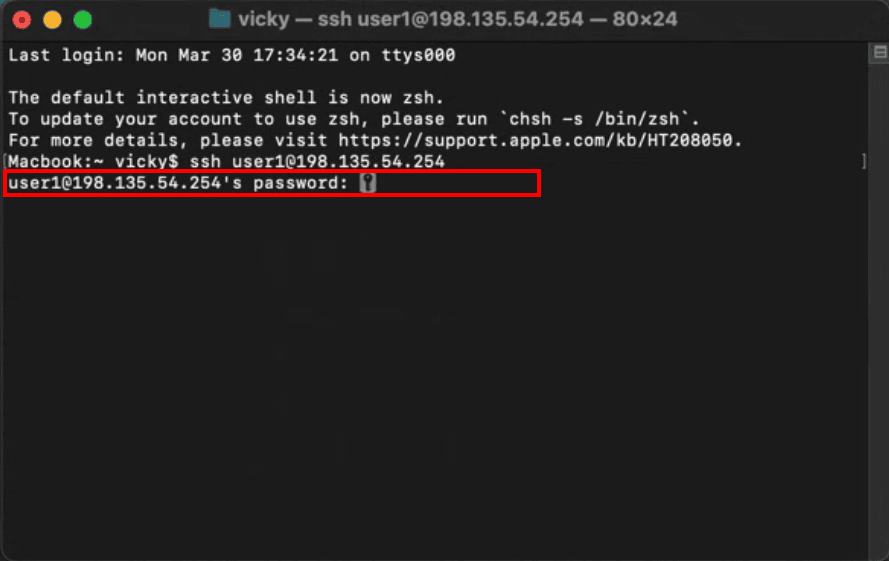
Next, you’ll be prompted to enter your password.
You can type it manually or copy it from your welcome email and paste it into the Terminal.
You might notice that nothing appears on the screen as you type.
This is normal. The Terminal hides passwords for security reasons, so you won’t see any characters or symbols.
Just enter your password carefully and press Enter.
If everything went well, you should now be connected.
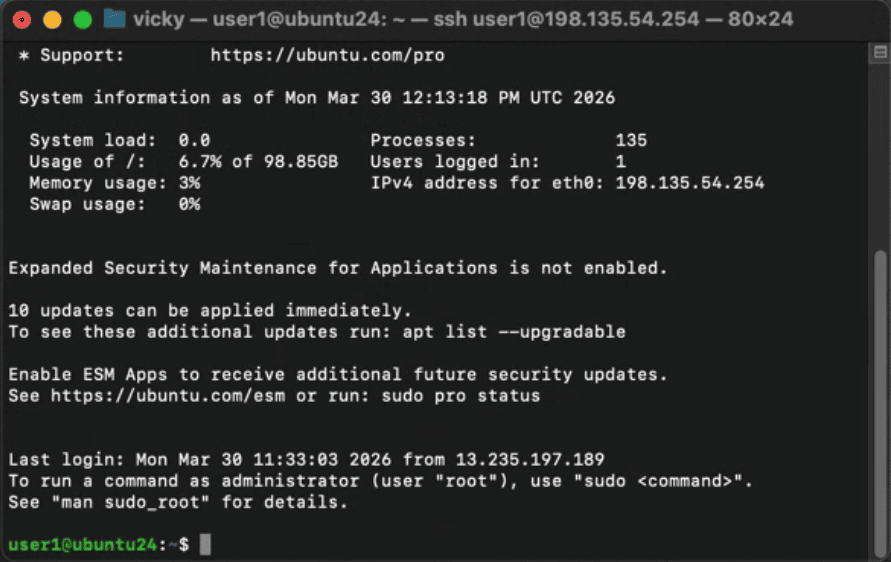
You’re Connected — Now What?
Want to confirm everything is working? Run this quick test command:
Type in free -m and then press Enter.
This displays how much RAM your server has and how much is currently being used.
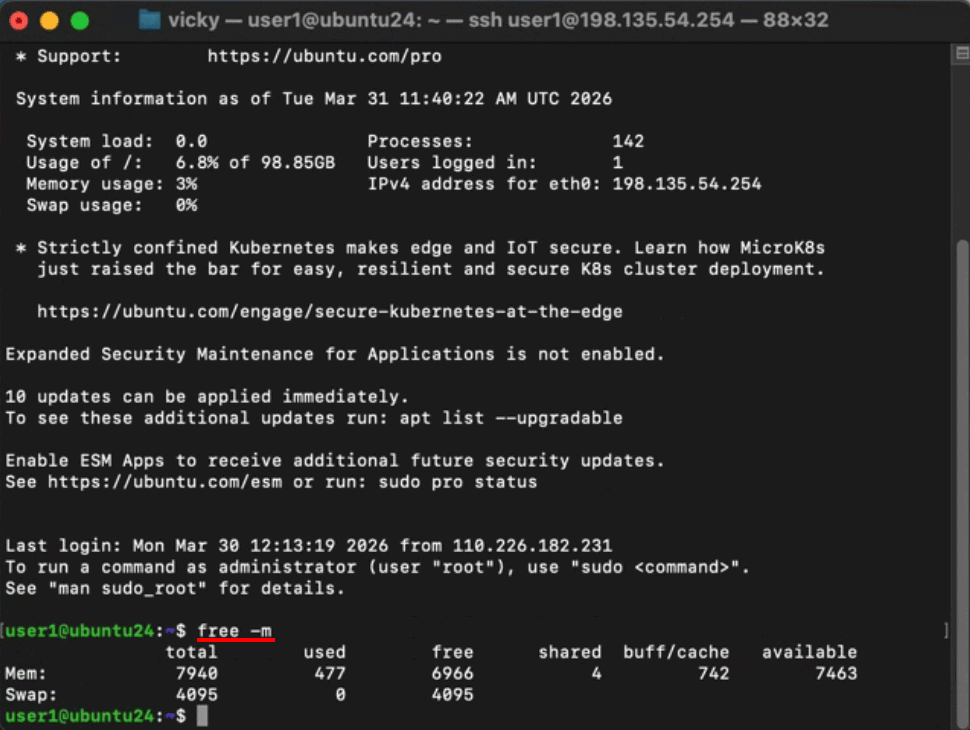
It’s a simple way to verify your connection is live and your server is up and running.
Looking for a Fast, Reliable Linux VPS?
If you don’t have a VPS yet, or you’re thinking about upgrading, we have plans available for every level, from beginners to more advanced users.
Every VPS comes with full root access from day one, so you’re in complete control right from the start.
Setup takes minutes, and with our built-in reboot panel, managing your server is as easy as a couple of clicks.
Payments are just as flexible. We accept PayPal, credit and debit cards, and crypto, so you can use whatever works best for you.
Ready to get started? Visit rdparena.com and use the code “30YAY” at checkout to get a FLAT 30% DISCOUNT your first purchase.
