

Your RDP username doesn’t have to be something you’re stuck with forever.
Maybe it’s a random default name, something outdated, or just annoying to type every time you log in.
Either way, this is one of the easiest changes you can make to your server.
Read on, and we’ll show you exactly how to get it done.
If you’d rather watch than read, we’ve also put together a short YouTube video that walks you through the entire process step by step.
What You Need Before You Start
This method requires Admin privileges.
If you’re not an administrator on your server, you won’t be able to make this change.
Make sure you’re logged in with an account that has admin access before you begin.
Step 1: Open Computer Management
Log in to your RDP server using your current credentials.
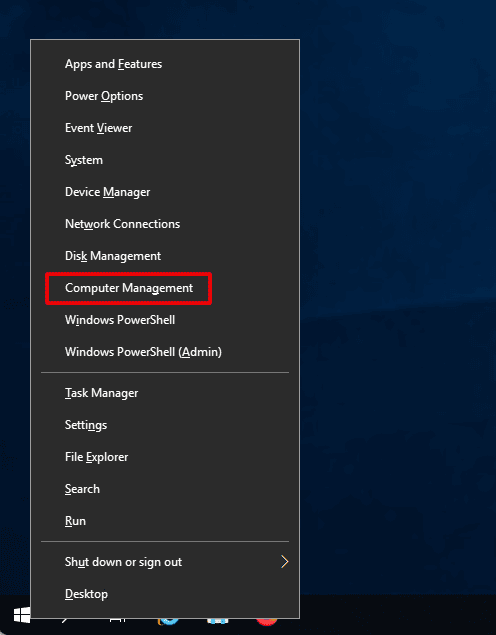
Once you’re on the desktop, right-click the Start button in the bottom-left corner.
From the menu that appears, select Computer Management.
Step-2: Go To Local Users and Groups
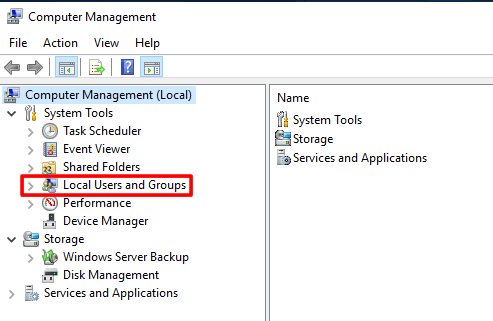
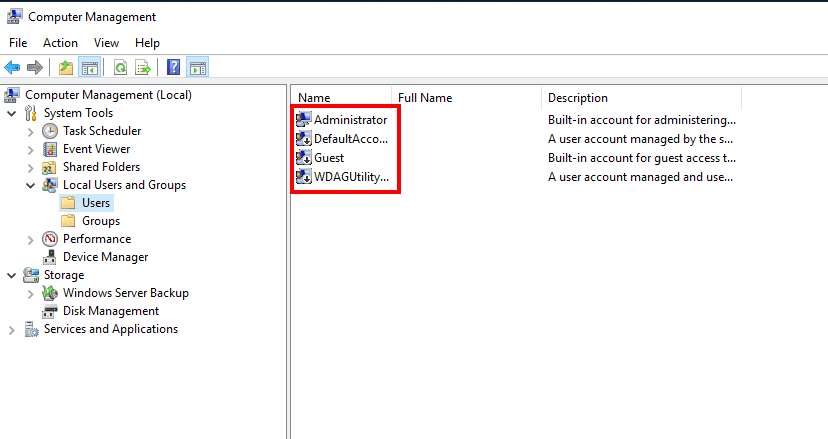
Inside the Computer Management window, look at the left sidebar.
Double-click Local Users and Groups.
Then click on Users.
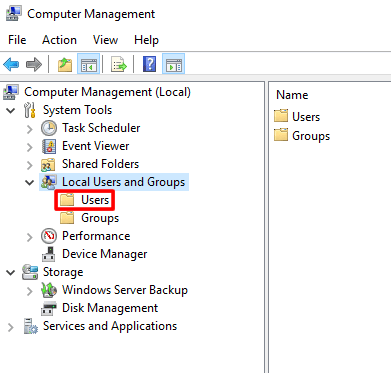
You’ll now see all user accounts on your server listed in the right pane.
Step 3: Rename The Account
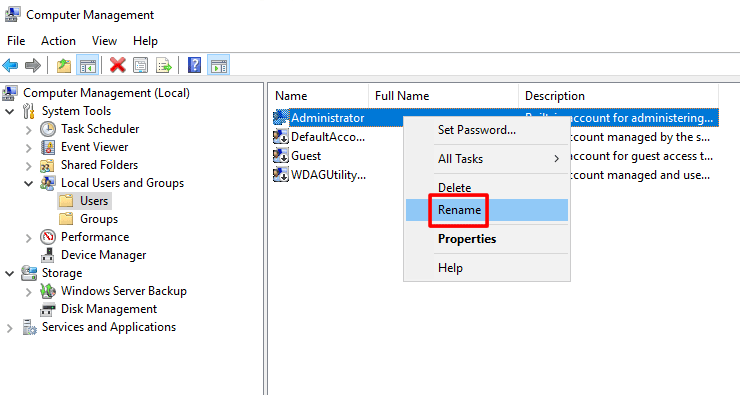
Find the account you want to rename, then right-click on it and select Rename from the menu.
Type in your new username and hit Enter.
That’s it! The new username is saved on the system instantly.
Step 4: Restart Your Server
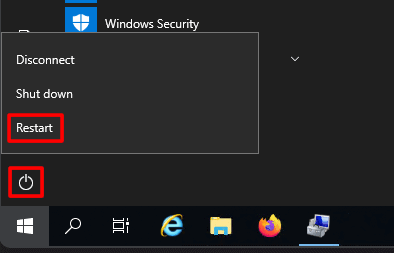
Once you’ve renamed the account, go ahead and restart your RDP server before trying to log in again.
Step 5: Log In With Your New Username
After the server restarts, open your Remote Desktop Connection app as usual.
When prompted to log in:
– Enter your new username.
– Use your existing password.
Your password does not change during this process. Only the username is updated.
If everything was done correctly, you should now be able to connect successfully using the new username.
One More Thing Before You Go
If you found this guide useful, here is something to make your RDP experience even better.
We are currently offering FLAT 20% OFF all RDP plans at RDP Arena.
Just head over to rdparena.com and use the code “20OFF” at checkout to grab your discount.
If you’ve been thinking about getting your own RDP or upgrading your existing RDP Server, this is a great time to start.
Just don’t sit on it for too long, as availability is limited and plans tend to sell out quickly.
