
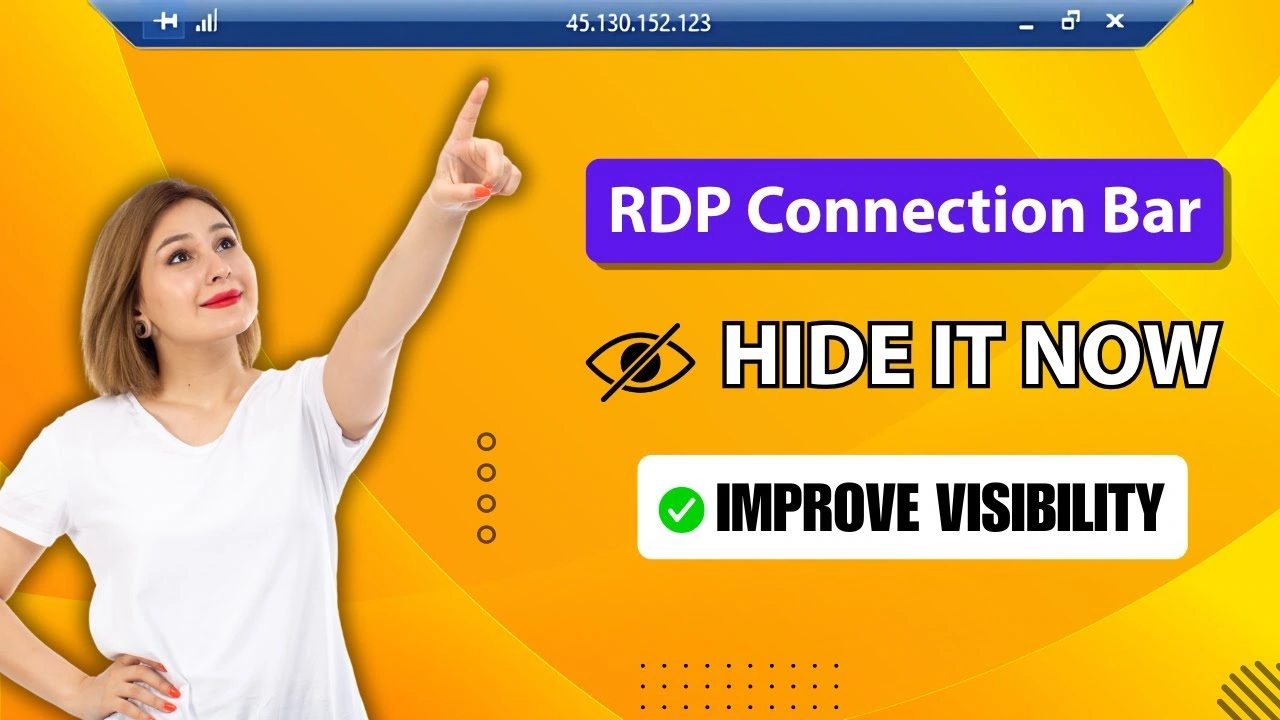

If you work in Remote Desktop for any length of time, the blue connection bar becomes impossible to ignore.
You move your mouse to the very top of the screen to click a browser tab, open a menu, or grab a toolbar — and suddenly the RDP bar drops down and blocks what you were trying to click.
You move away, and it disappears. You try again. It drops down again. Over and over.
It breaks your focus, interrupts your workflow, and constantly reminds you that you’re working remotely instead of locally.
The good news is this: there’s a built-in setting that removes the bar completely, no registry edits or hacks required.
This article walks you through that quick fix and shows you how to disconnect (or minimize) your RDP session properly once the bar is gone.
If you prefer watching instead of reading, we have also explained the full process in a short YouTube video you can check out.
How To Hide The RDP Connection Bar
Step 1: Open the Remote Desktop Connection App
On your local computer, type mstsc into the Windows search bar.
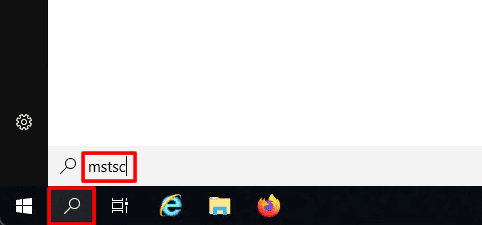
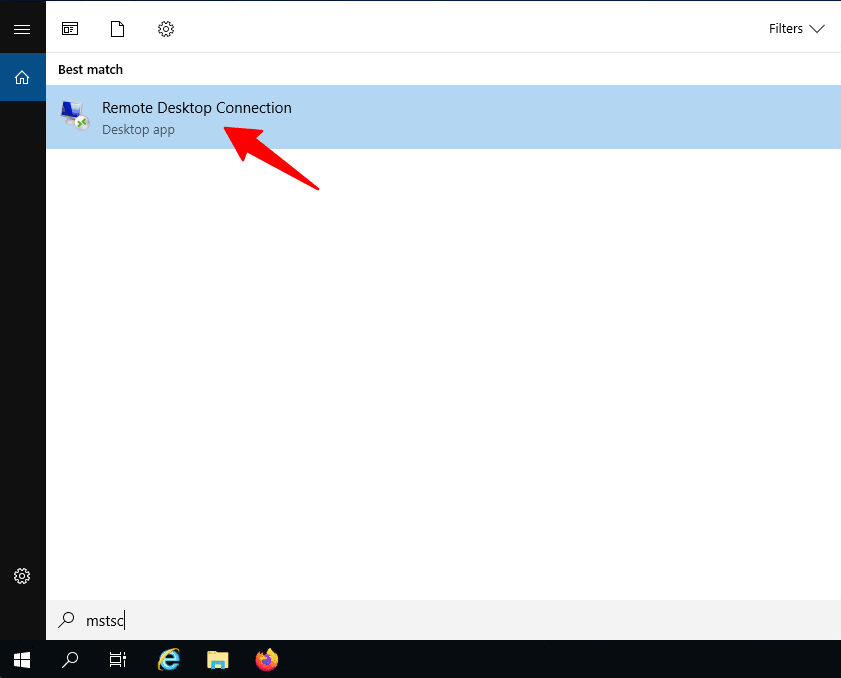
When Remote Desktop Connection appears in the results, click it to open the app.
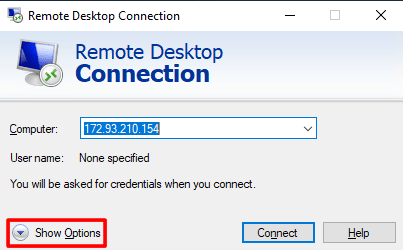
Next, click Show Options in the bottom-left corner to expand the full settings.
Step 2: Open The Display Tab
At the top of the window, click the Display tab.
This section controls the resolution and color depth, but it also controls the connection bar.
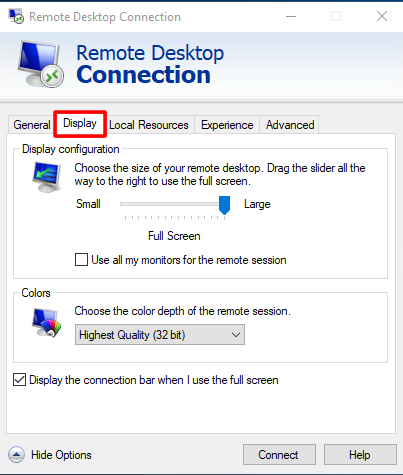
Step 3: Disable The Bar
Uncheck the option that says “Display the connection bar when I use the full screen.”
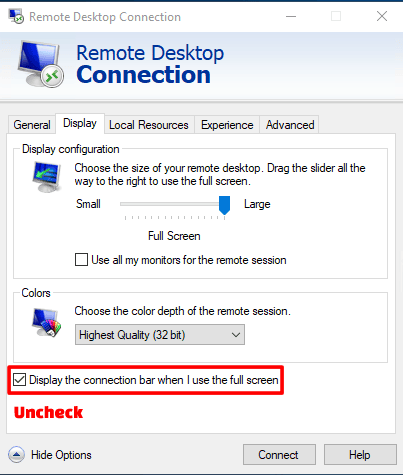
Step 4: Connect Normally
With that box unchecked, just hit Connect and log in to your server.
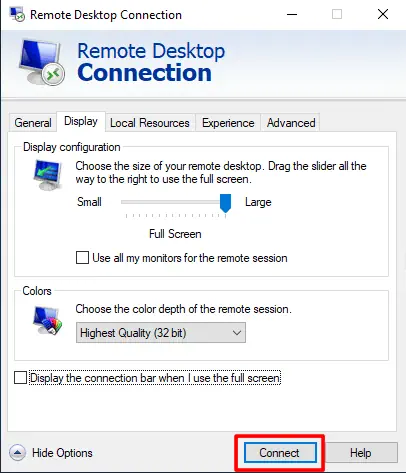
As the remote desktop loads, you will notice the difference immediately.
The blue bar will no longer hover at the top of the screen.
You’ll be able to enjoy a true edge-to-edge full-screen experience that looks and feels exactly like a local computer.
How To Disconnect From The RDP Session Without The Connection Bar
There is one catch to hiding the connection bar: you also hide the “X” button used to close the session.
If you try to exit by just clicking the ‘X’ on the window, you might not find it, and hitting standard shut-down keys might affect your local machine instead of the remote one.
To safely exit your RDP session (but leave the server running) without the bar:
a) Click the Start Menu inside your remote server.
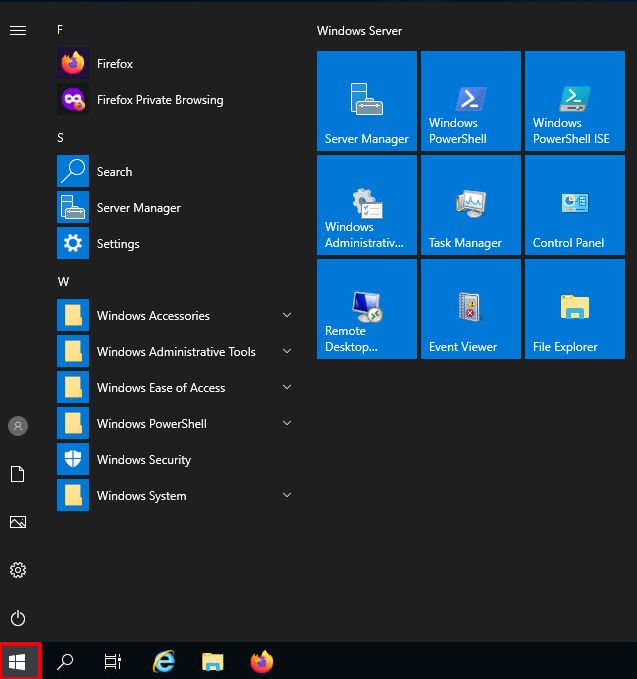
b) Click the Power/User icon.
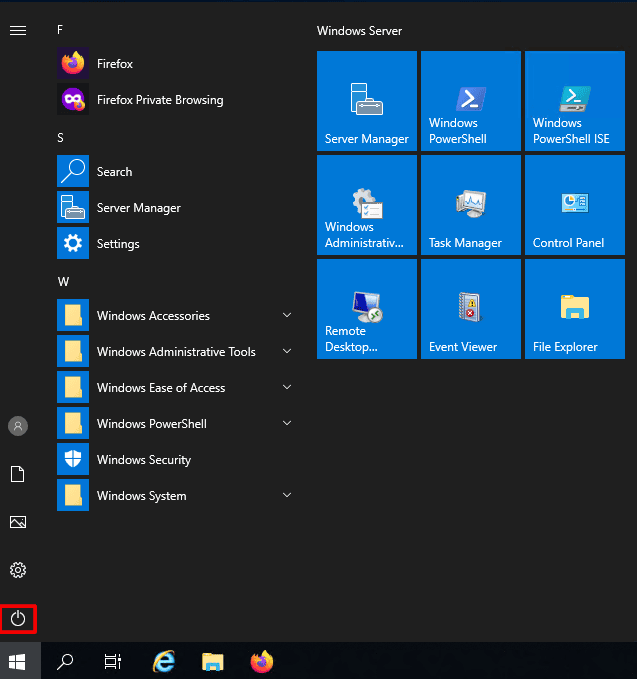
c) Select “Disconnect” from the menu options.
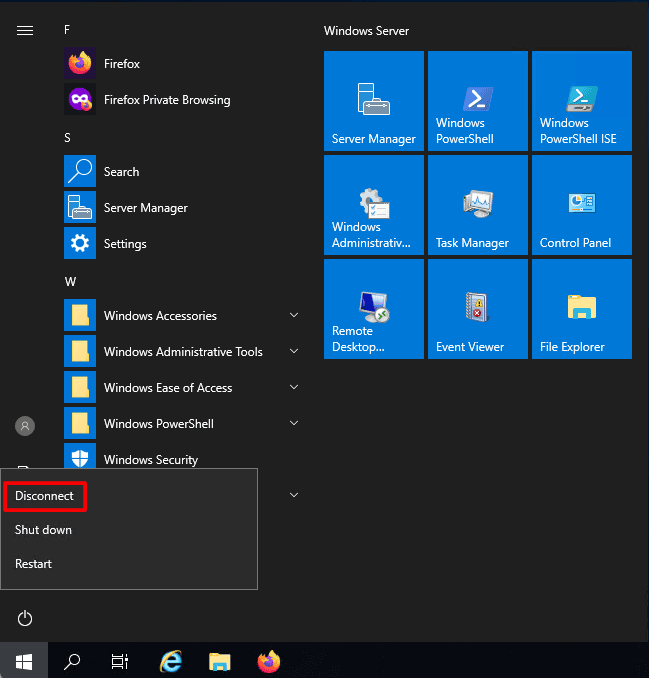
This will end your remote session and return you to your local desktop safely, ensuring your server keeps running in the background.
How To Minimize The RDP Session Without The Connection Bar
If you want to minimize your RDP session without disconnecting, use the built-in keyboard shortcut.
While inside the full-screen RDP session, press Ctrl + Alt + Home.
This temporarily brings the connection bar back into view.
From there, click the Minimize button to send the RDP session to the taskbar while keeping the remote system running.
One Last Thing
Since you’ve made it this far, here’s a small bonus for you.
We are offering a flat 20% discount on all our RDP plans.
Simply head over to rdparena.com and use the code “20OFF” during checkout to claim your discount.
Hurry! Stocks are limited, and this offer may expire at any time.
