


If your RDP feels slow, you don’t need tools, scripts, or guesswork to find out why.
You can check your RDP’s actual internet speed in under a minute, directly from the server itself.
This guide walks you through the fastest, no-nonsense way to check your RDP’s internet speed and understand what the numbers really mean.
Step 1: Open The Speed Test Website Inside Your RDP Session
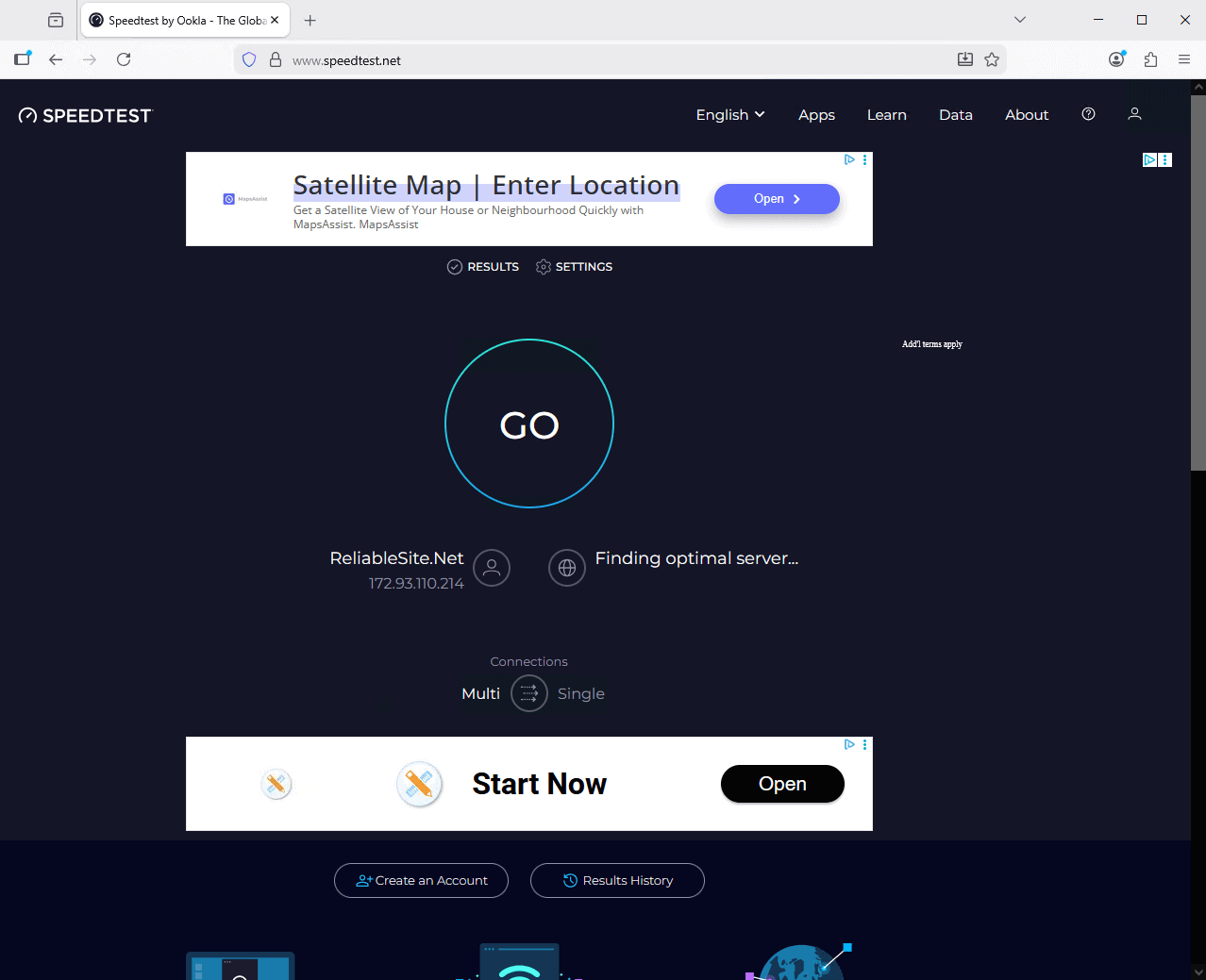
Open a browser inside your RDP session and go to speedtest.net.
Step 2: Choose A “Fair” Test Server
By default, Speedtest may select a server that is extremely close to your RDP host, sometimes even within the same data center or network.
Testing against a server that close only measures internal network speed, not how your RDP performs on the public internet.
The results may look impressive, but they won’t reflect real-world usage.
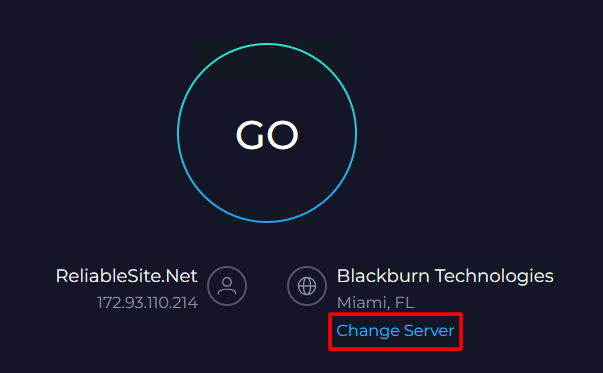
So, before running the test, click on the “Change Server” option and switch to a well-known third-party host in a nearby city.
This forces the traffic to leave the data center and travel over the public internet, giving you a much more accurate picture of actual performance.
Pro Tip: If you want to understand how your RDP performs specifically when connecting from your own computer, choose a test server located in the same city or region as your local machine.
Step 3: Run The Benchmark Test
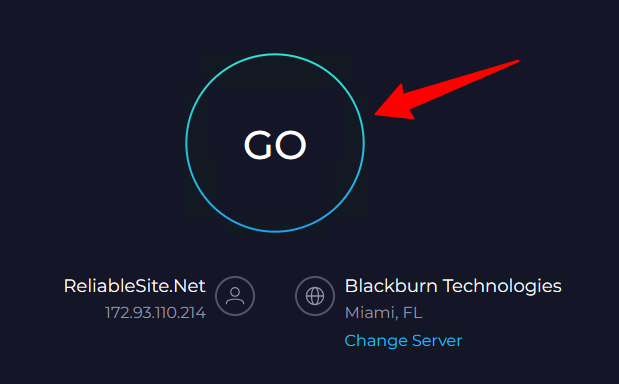
Click the big “Go” button and wait for the test to complete.
It will measure three things:
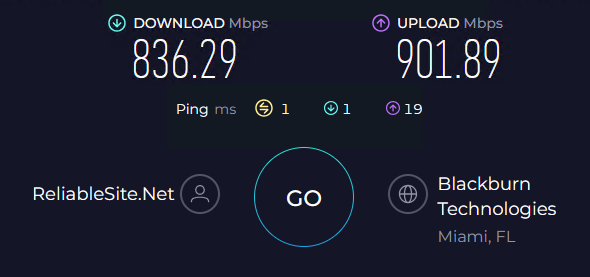
Latency (Ping) – The round-trip time it takes for data to travel to the server and back. Lower latency means a more responsive RDP session, while higher latency can make everything feel slow and delayed.
Download speed – How quickly data can be pulled into your server, which affects things like loading websites and downloading files. Higher is better.
Upload speed – How quickly data can be sent out from your server, which affects file uploads, and sharing data externally. Higher is better.
A Quick Note on Bits vs. Bytes
Speed tests report results in megabits per second (Mbps). But when you download a file on your desktop, your computer shows the speed in megabytes per second (MB/s).
These are not the same thing. There are 8 bits in a byte, so:
1000 Mbps (speed test result) = 1000/8 = 125 MB/s (file transfer speed)
100 Mbps (speed test result) = 100/8 = 12.5 MB/s (file transfer speed)
Want More Detailed Results? Try Cloudflare’s Speed Test
Speedtest.net is quick and easy, but if you want deeper insight into your connection quality, try speed.cloudflare.com.
Cloudflare’s tool measures the same basics (download, upload, latency), but also reports:
Jitter: This shows how much your latency fluctuates. High jitter can cause stuttering, choppy video calls, and a laggy remote desktop experience.
Packet loss: The percentage of data that never reaches its destination. Even small amounts of packet loss can make an RDP session feel laggy or unresponsive.
Need More Bandwidth?
If your speed test results are consistently underwhelming, it may be time to move to a provider built for high-performance workloads.
At RDP Arena, we offer RDP servers with 1Gbps and 10Gbps connectivity, designed for fast file transfers, smooth remote sessions, and demanding use cases.
If you’re considering a switch, this is a good time to do it. We’re currently offering a flat 20% discount on all RDP plans.
Just use the code “20OFF” at checkout to grab your discount.
But hurry! This is a limited-time offer, and stocks are running out fast.
