


Need to update your RDP password? It’s quick and simple, and you can do it in just a couple of minutes.
If you prefer to watch a video instead, simply click this link for a step-by-step walkthrough.
Here’s exactly what you need to do.
Step-1: Log-in and Press Ctrl + Alt + End
Start by logging into your RDP server. Once inside, press Ctrl + Alt + End on your keyboard.
This key combination will bring up the security options screen.
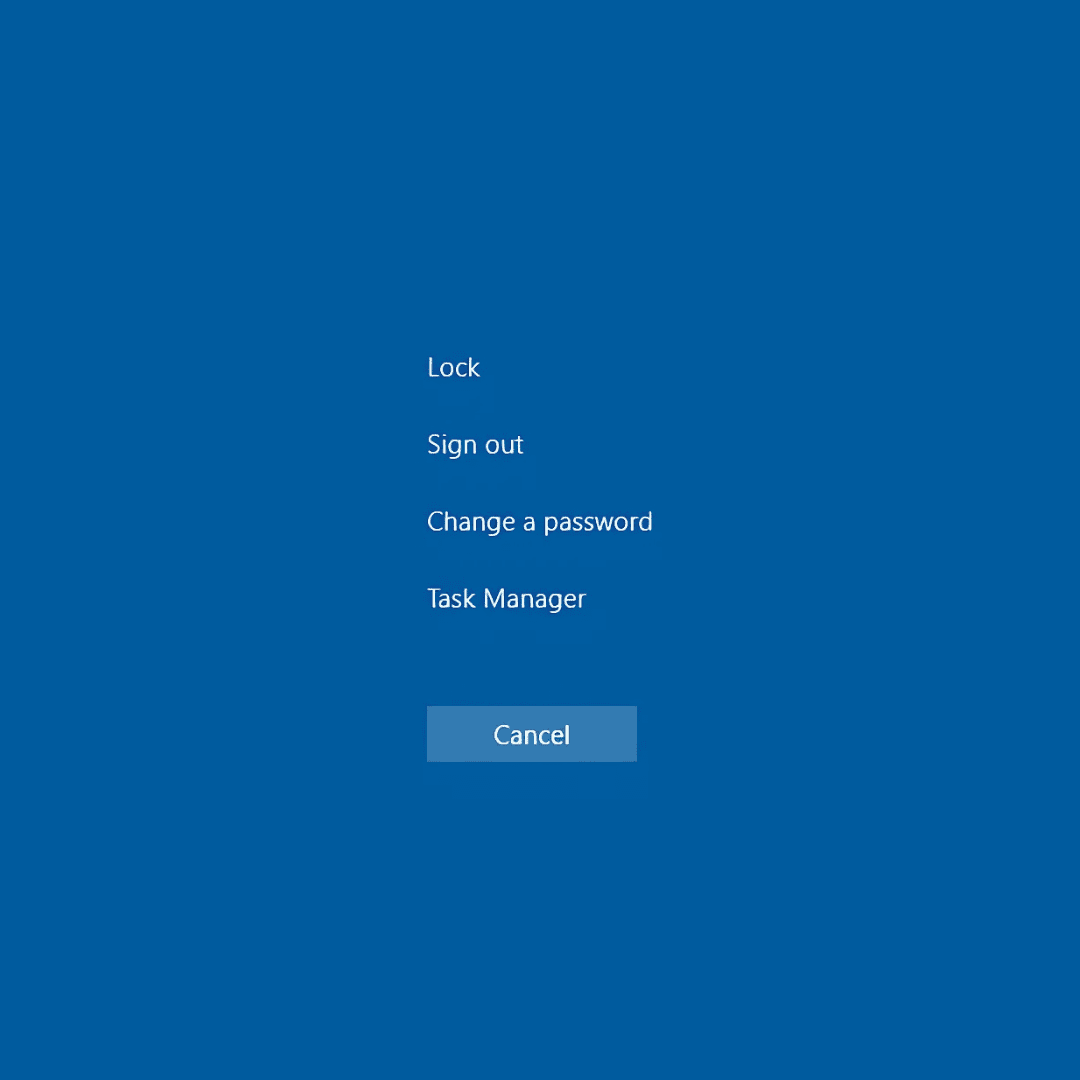
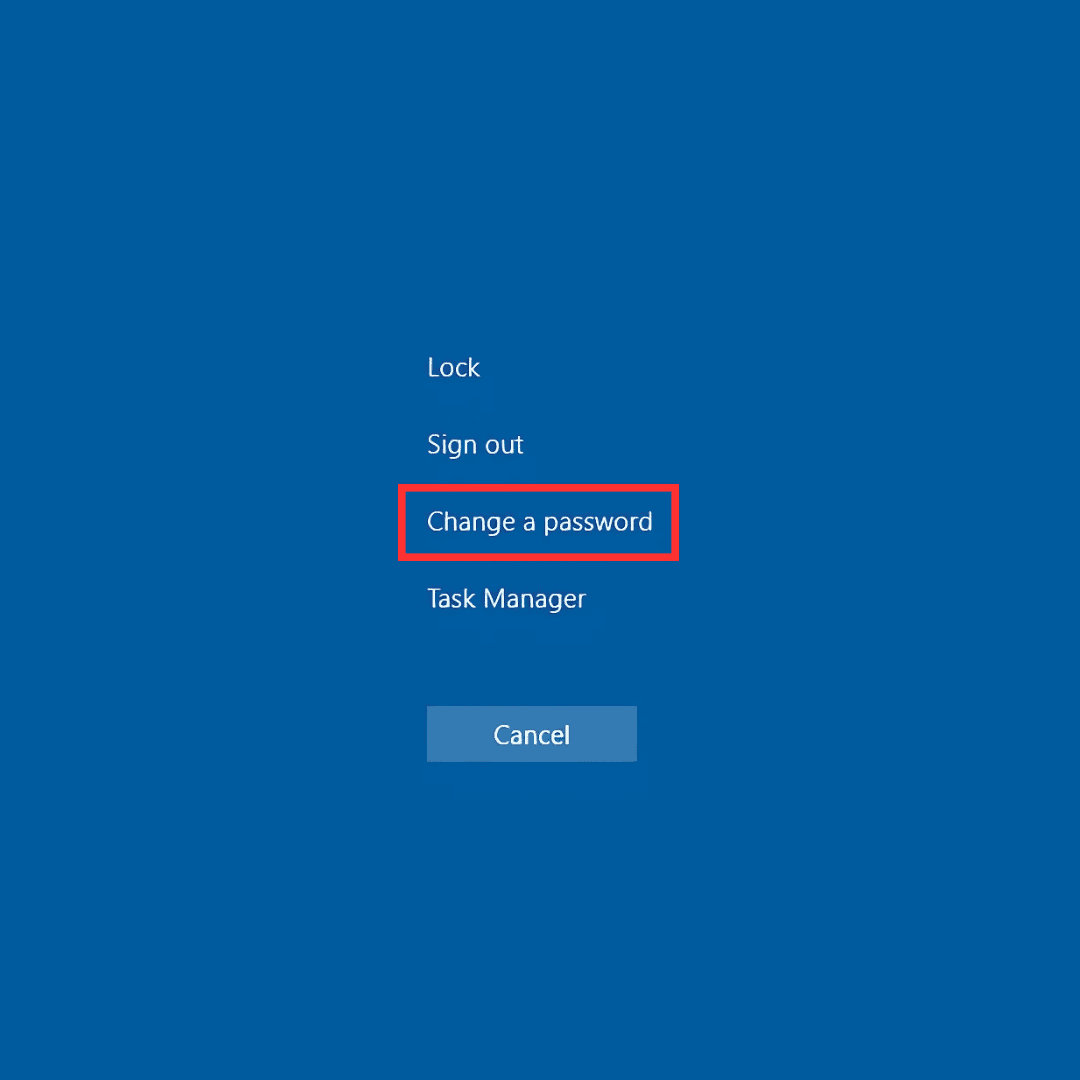
Step-2: Select Change a Password
In the security options screen, look carefully for the option that says “Change a password” and click on it with your mouse.
This will open up the password change interface, where you’ll be able to enter your new credentials.
Step-3: Enter Old and New Passwords
You’ll now see three boxes.
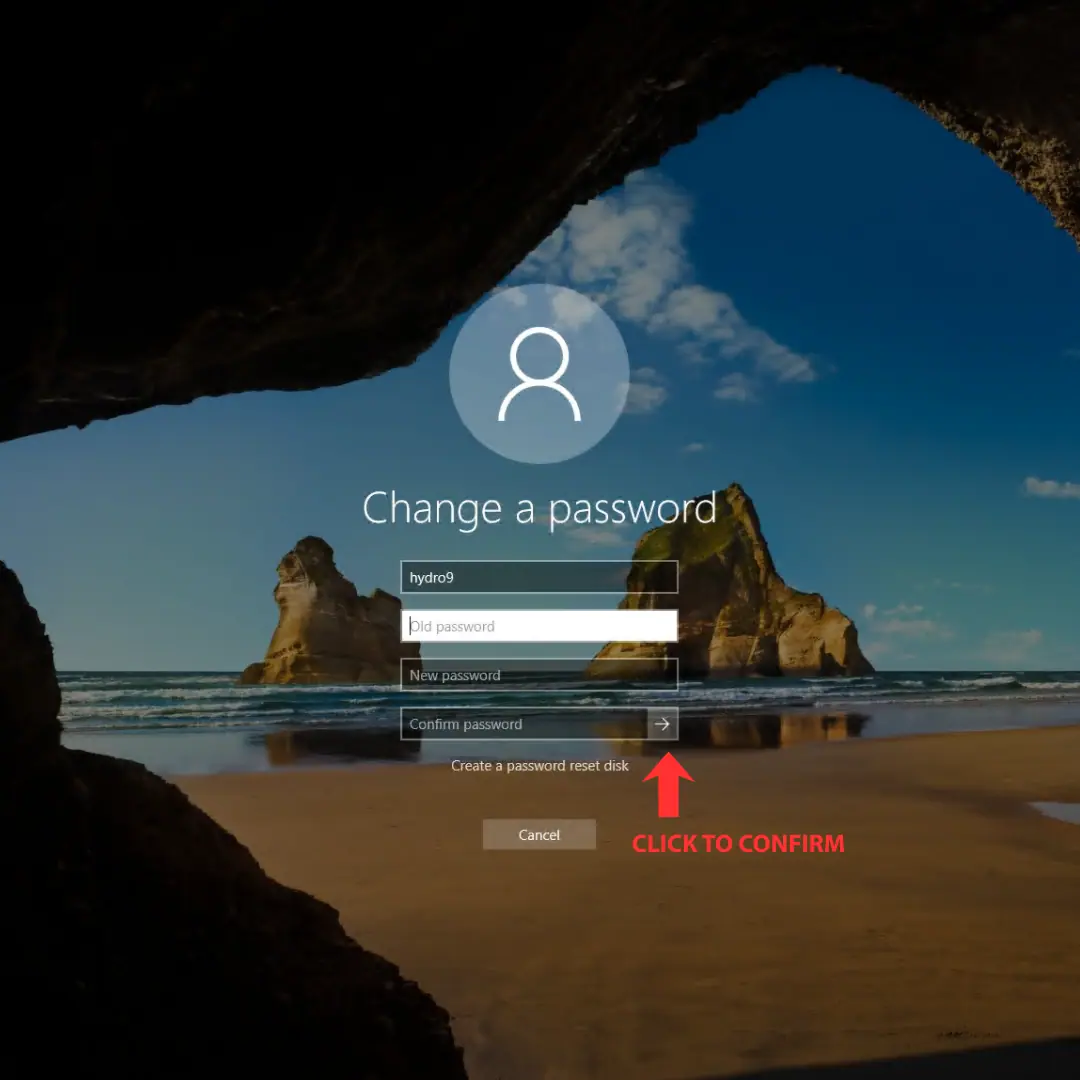
In the first one, type your current password.
In the second box, type the new password you want to use.
In the third box, type the same new password again and click on the arrow icon on the right to confirm.
And that’s it! You’ve successfully changed your RDP password.
To make sure everything worked, sign out of your RDP session (press Ctrl + Alt + End) and log back in using the new password.
If you can access your server again, then your new password is active and ready to use.
If you run into trouble or something doesn’t work as expected, you can always create a support ticket, and we’ll be happy to help you out.
A Special Offer Just For You
Since you’ve stayed with us through this guide, we want to give you something extra.
As a valued reader, you’re getting an exclusive 20% discount on your first RDP server or upgrade.
Simply head over to our website, rdparena.com, and use the code “20OFF” at checkout to claim your reward.
This offer is reserved only for our readers and is available for a limited time.
Once the slots are gone, the discount disappears—so make sure you grab it while you still can.
