

You log into your Remote Desktop, try to copy text or move a file, and nothing happens. No error message, no explanation—just a copy-paste that refuses to work. Annoying, right?
If this sounds familiar, you’ve probably hit the “rdp copy paste not working” problem that frustrates so many users.
The good news is this isn’t a big technical headache. In fact, the fix is quick, simple, and takes less than three minutes.
If you prefer watching instead of reading, we have also explained the full process in a short YouTube video you can check out.
Why Copy-Paste Stops Working in RDP
The “RDP Copy-Paste Not Working” error usually happens when the RDP Clipboard Monitor (rdpclip.exe) process hangs or crashes.
This process handles clipboard redirection between your local computer and the remote server.
When it stops working properly, copy-paste functionality breaks.
Restarting the rdpclip.exe process typically resolves the issue and restores clipboard operations.
How to Restart RDP Clipboard (rdpclip.exe)
Follow these simple steps to fix copy and paste not working in your RDP connection:
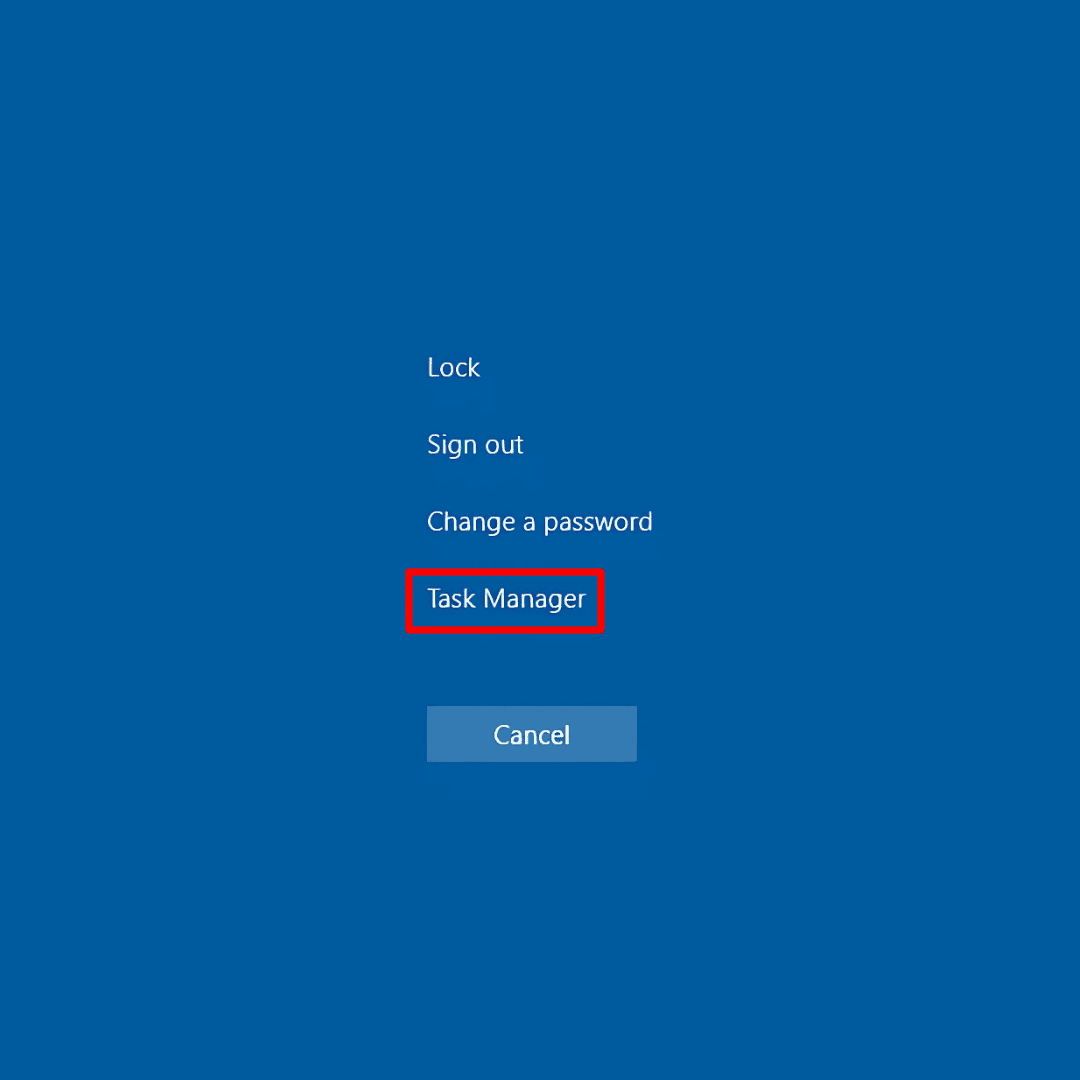
Step-1: Login to your RDP Server and press Ctrl + Alt + End to open the Task Manager.
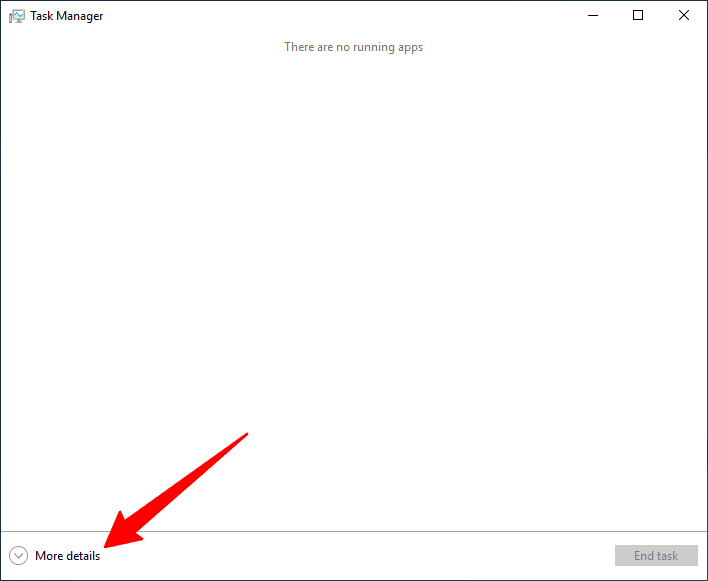
Step-2: Once Task Manager opens click on “More details.”
Step-3: Next, click on the Processes tab from the top.
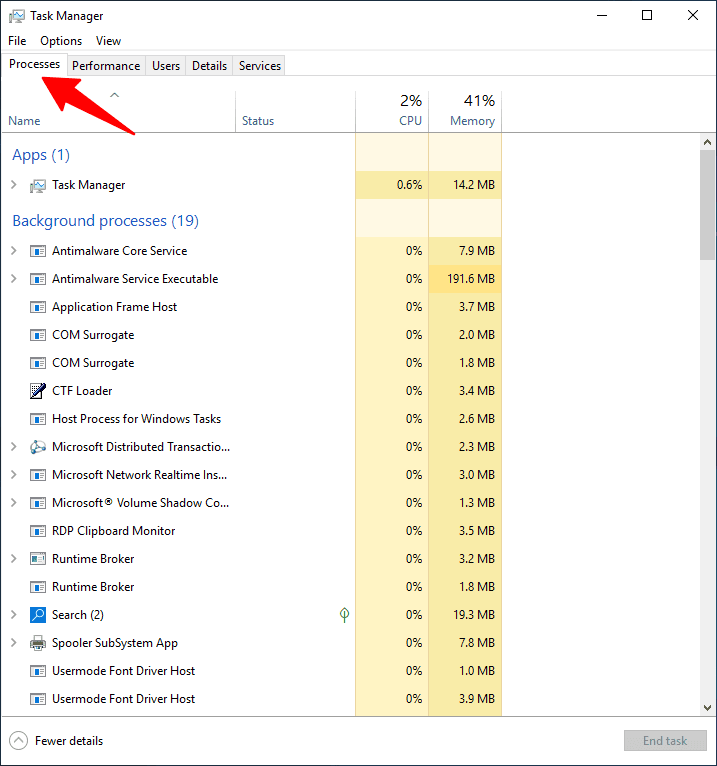
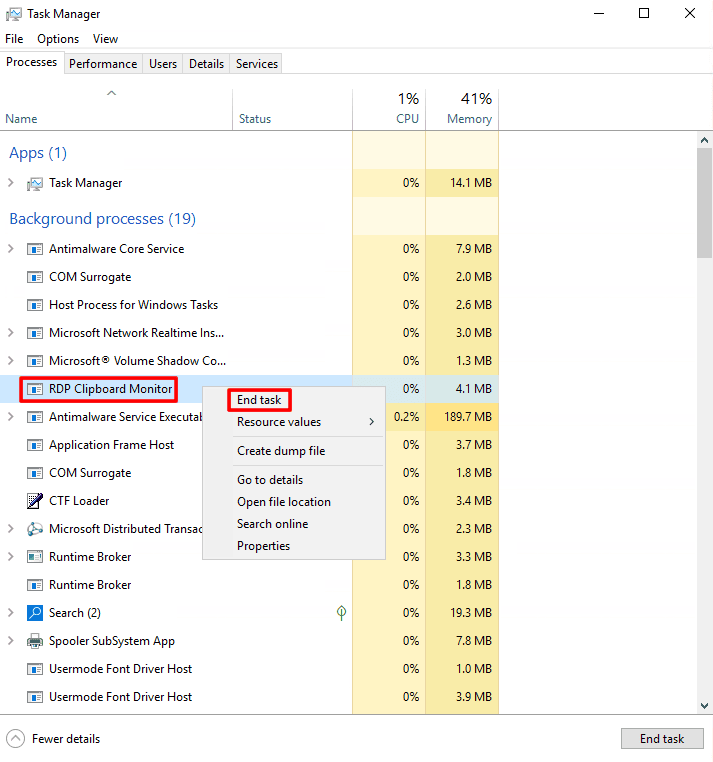
Step-4: Now find the RDP Clip Monitor (rdpclip.exe) process from the list and then right-click on it and select End Task.
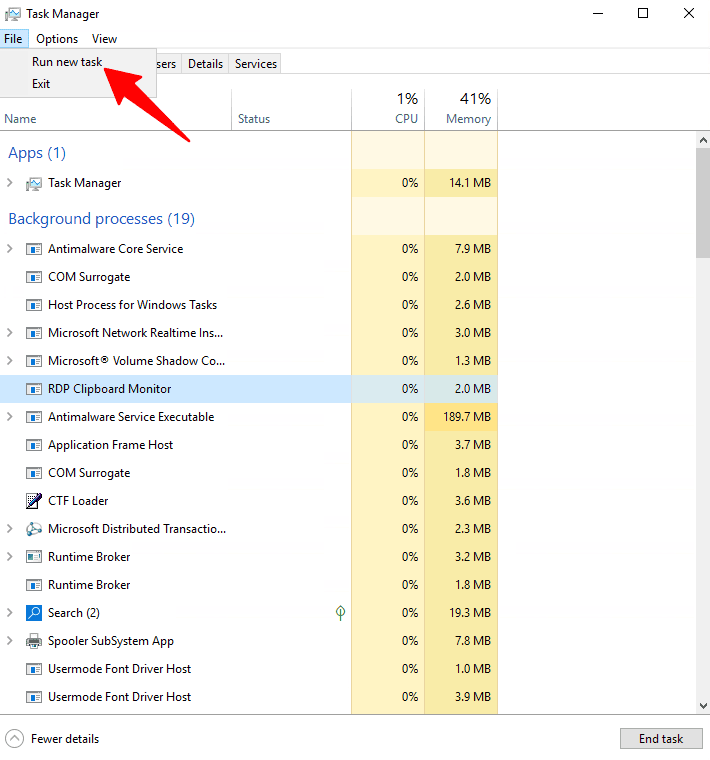
Step-5: Now click on the File Menu on the top and then select Run New Task.
Step-6: Type in rdpclip.exe and click OK.
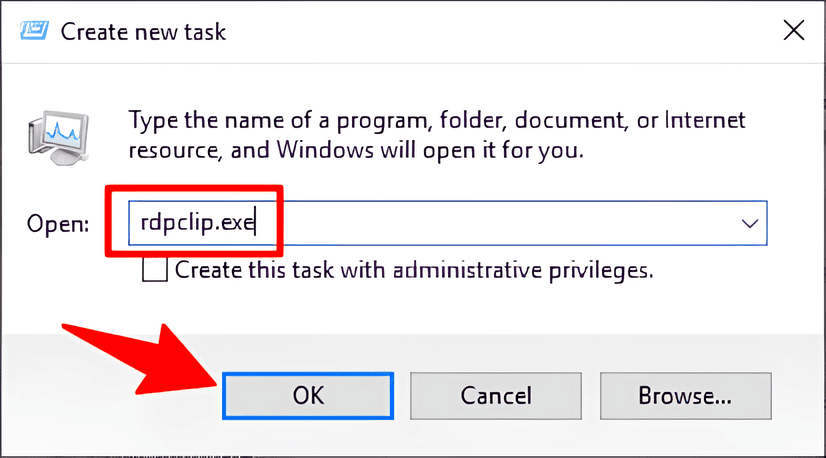
This will restart the RDP Clip Monitor (rdpclip.exe) process and should fix the copy and paste not working error on your remote desktop. In case it’s still not working, then it might be related to an issue with your local device, clipboard settings, or RDP client settings.
Additional Troubleshooting for Copy and Paste Not Working
If you’re still unable to copy and paste or paste from remote desktop, then ensure that clipboard redirection is enabled in your RDP settings.
To check this:
Step-1: Open your Remote Desktop Connection window.
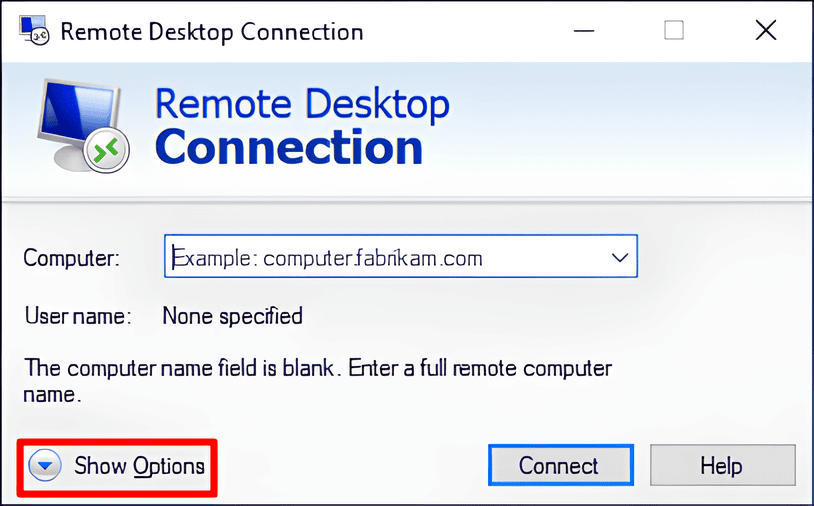
Step-2: Go to the Local Resources tab and under Devices and Resources, make sure the Clipboard option is checked.
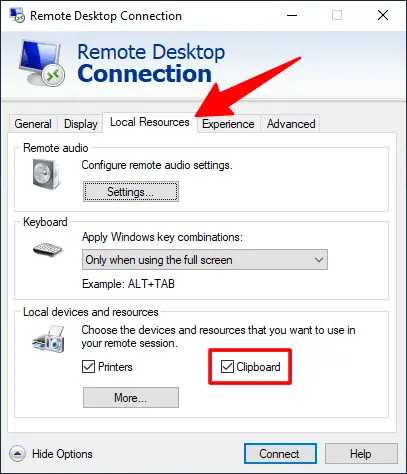
This setting allows you to copy and paste in remote sessions and share data between your local and remote computers.
If this option is disabled, you’ll not be able to copy-paste or paste via RDP even if the rdpclip.exe process is running.
If you still face the same copy-paste problem, you can even fix it through the Group Policy Editor:
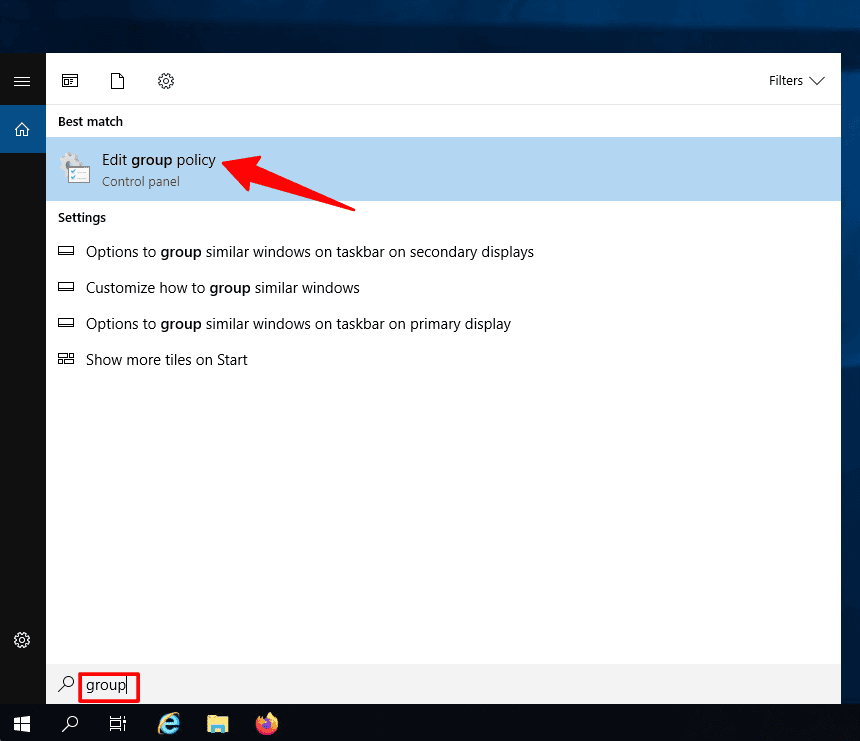
Step-1: In the Windows search bar, type in “group” and then select the Group Policy Editor from the search results.
Step-2: Navigate to Computer Configuration → Administrative Templates → Windows Components → Remote Desktop Services → Remote Desktop Session Host → Device and Resource Redirection.
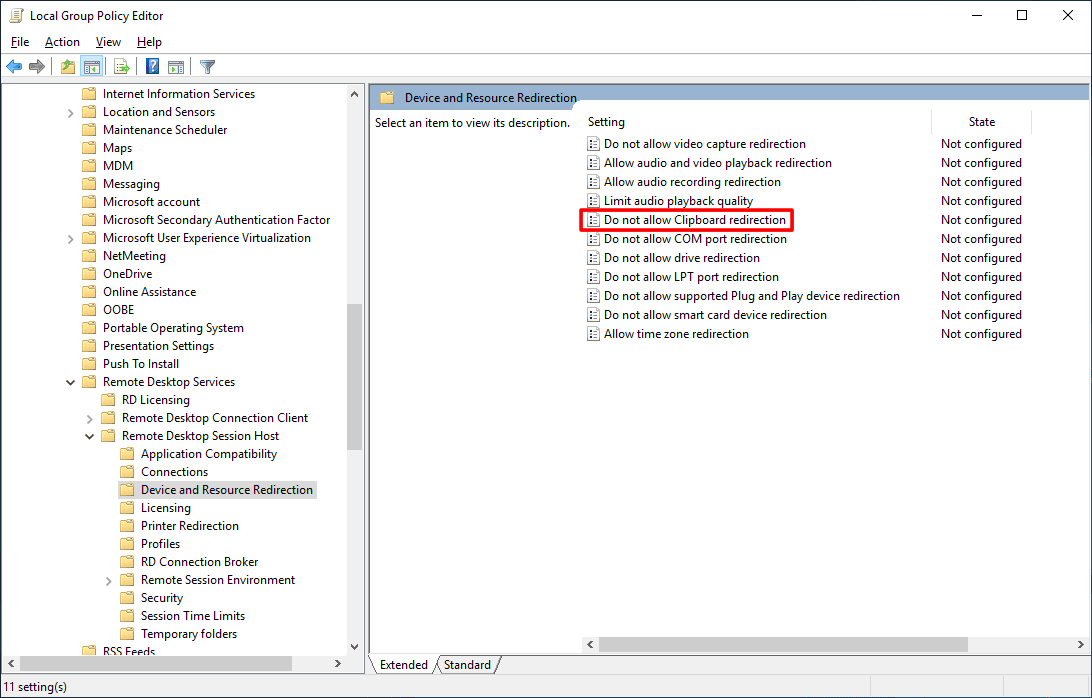
Step-3: Look for the policy “Do not allow clipboard redirection” and make sure it’s set to Disabled.
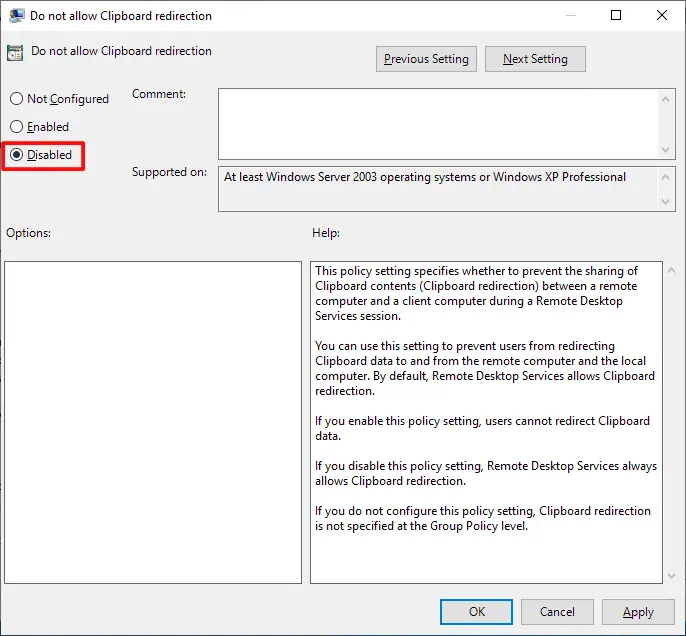
This will allow clipboard redirection and enable clipboard sharing between your local and remote computers, fixing most copy-paste issues in Windows Server or terminal server environments.
In case you are still having issues, feel free to contact us, and we’ll help you out.
And if you’re thinking about buying a new US RDP server or upgrading your current one, head on over to rdparena.com and use the code “20OFF” at checkout to get a flat 20% discount on your first purchase.
